Commercial workflow page

Fill PDFs With curl — JSON-to-PDF API From the Terminal

One curl command, one JSON body, one filled PDF written to disk. Test the JSON-to-PDF API in 30 seconds before writing any application code. Free tier available.

Why most engineers test new APIs with curl first

Before any application integration, the right first step with a new PDF fill API is a curl call. It removes every layer that could fail for a reason unrelated to the API itself: the SDK install, the language runtime, the network library, the framework. If the curl call returns a valid PDF, the API works. If it does not, the failure mode is unambiguous.

That same call also doubles as the canonical reference for whatever language wrapper comes next. The Node.js fetch, the Python requests.post, the Go http.Post — all of them are encoding the same HTTPS POST that the curl call already proved out. Starting with curl shortens debugging in every later language binding.

Minimal curl example

A typical call from the terminal looks like the snippet below. Replace `<TEMPLATE_ID>` with the saved-template ID shown in the API Fill modal and `$DULLYPDF_API_KEY` with the API key from the same modal. Authentication is HTTP Basic with the API key as the username and a blank password — the printf+base64 trick below builds the right header without needing a curl version that supports `--user`.

The body is a single `data` object whose keys are the cleaned field names from your saved template, plus `exportMode: "flat"` (non-editable PDF) or `"editable"` (preserves AcroForm), plus `strict: true` (recommended for production — rejects unknown payload keys).

  • curl -X POST "https://api.dullypdf.com/api/v1/fill/<TEMPLATE_ID>.pdf" \
  • -H "Authorization: Basic $(printf '%s:' "$DULLYPDF_API_KEY" | base64)" \
  • -H "Content-Type: application/json" \
  • --data '{"data": {"patient_name": "Jane Doe", "patient_email": "jane@example.com"}, "exportMode": "flat", "strict": true}' \
  • --fail \
  • --output filled.pdf
  • After the call: `open filled.pdf` (macOS) or `xdg-open filled.pdf` (Linux) to inspect the result. For larger payloads, save the JSON body to `payload.json` and reference it with `--data-binary @payload.json` instead of inlining.

Where curl fits in a typical evaluation cycle

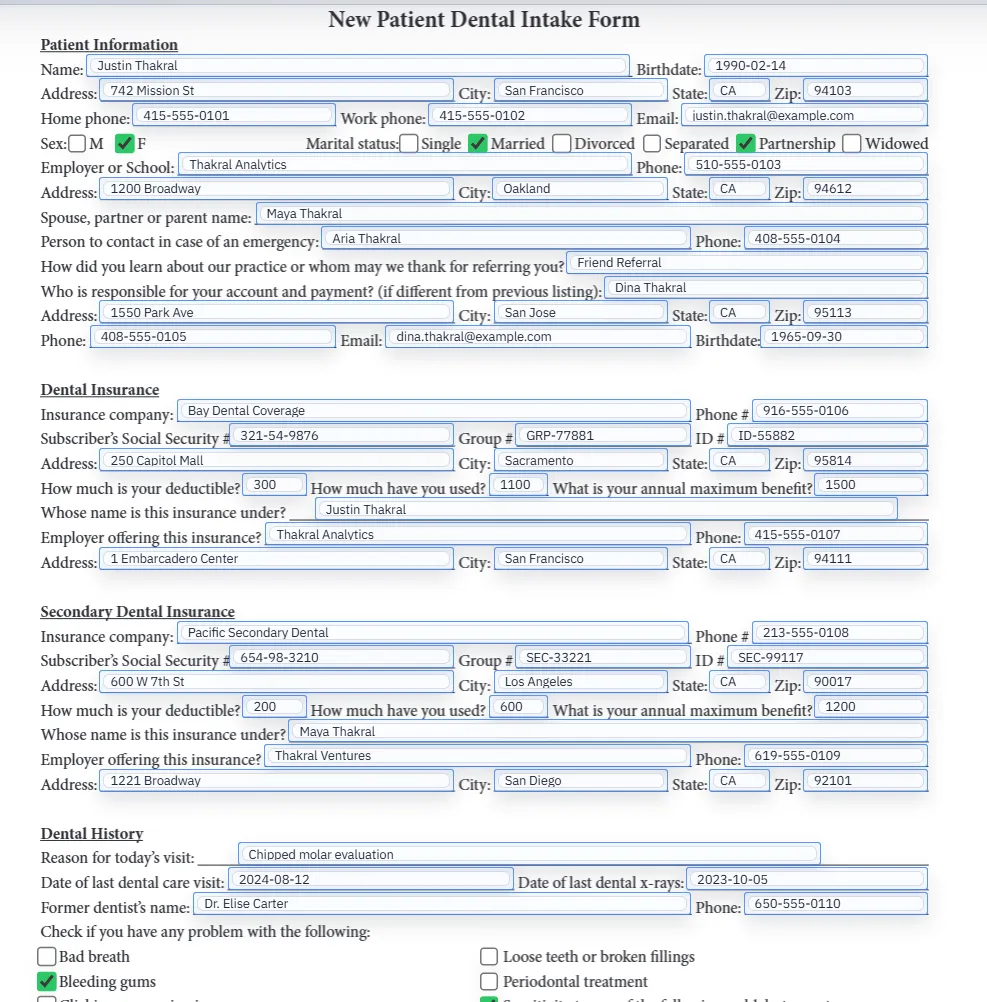
The first 30 seconds of evaluating a PDF fill API should be a curl call against a real template, not reading marketing copy. Upload one PDF, let detection run, copy the endpoint URL and API key from the workspace, paste them into a curl command with one or two field values you actually care about, and look at the resulting PDF in a viewer. That single round trip tells you more than any feature comparison page can.

After the curl call works, the same JSON shape ports directly to the language you actually use in production. The Node.js fetch, the Python requests, the Go net/http call — each is the same HTTPS POST with the same body. The curl call is the contract; the language binding is just a convenience wrapper around it.

  • Step 1: upload one real PDF, run detection, save as a template.
  • Step 2: copy endpoint URL + API key from the workspace.
  • Step 3: run the curl command with --output filled.pdf.
  • Step 4: open filled.pdf and verify the field values rendered correctly.

Useful curl flags for this API

A few curl flags make this API easier to work with during evaluation and in shell scripts.

  • --output filled.pdf → write the filled PDF directly to disk instead of dumping bytes to the terminal.
  • --fail → exit with a non-zero status on HTTP 4xx/5xx, useful in shell scripts and CI jobs.
  • --silent --show-error → suppress the progress bar but still print real errors.
  • -D headers.txt → dump response headers to a file (the request ID lives in `x-dullypdf-request-id`).
  • --data-binary @body.json → for larger payloads, store the JSON body in a file and reference it.
  • -w "%{http_code}\n" → print the final HTTP status code after the body is written.

Using curl in shell scripts and CI

Once the curl call works at the terminal, the same command drops cleanly into a shell script or a CI job. A nightly cron task that renders 50 filled PDFs from yesterday's submissions is a few lines of bash plus a loop over a CSV. A CI smoke test that verifies the production endpoint is still serving correct PDFs is a single curl + a file-size or PDF-magic-bytes check.

For shell scripts, prefer storing the API key in an environment variable rather than inline so you can rotate keys without rewriting scripts. Pair `--fail` with `set -euo pipefail` so an API error stops the script instead of silently writing an empty PDF.

Common curl errors and what they usually mean

A few error patterns show up consistently when evaluating any HTTP API with curl. Knowing them in advance saves debugging time.

  • HTTP 401 / 403: the bearer token is missing, wrong, rotated, or scoped to a different template. Check the Authorization header and the template ID.
  • HTTP 404: usually a wrong template ID or wrong endpoint URL. Confirm both in the workspace endpoint settings.
  • HTTP 422: the JSON body is structurally fine but a required field is missing or a field value violates a template-defined rule. The response body lists which field caused the failure.
  • HTTP 429: rate-limited. Check the X-RateLimit-Remaining and Retry-After response headers.
  • Empty file written to disk: usually `--fail` was missing and curl wrote a JSON error body to filled.pdf. Open the file in a text editor and the JSON error message will be visible.

Why teams use PDF Fill API with curl

  • One terminal command to verify the API works against your real PDF before writing any application code.
  • No SDK install, no language runtime — useful for evaluation, debugging, shell scripts, and CI smoke tests.
  • Same endpoint and JSON contract used by the Node.js, Python, and webform paths — the curl call is the canonical reference.

Implementation signals for PDF Fill API with curl

  • API call is a standard HTTPS POST with a JSON payload and HTTP Basic authentication (API key as username, blank password).
  • Response body is the raw filled PDF — pipe it straight to a file with `--output`.
  • curl response headers include the request ID for support traceability.

Need deeper technical details about pdf fill api with curl? Use the Rename + Mapping docs and Search & Fill docs to validate exact behavior.

Frequently asked questions about PDF Fill API with curl

Do I need an SDK to test the API?

No. The API is plain HTTPS + JSON, callable with curl, wget, httpie, Postman, or any HTTP client. Curl is the fastest first call.

Can I use the same curl call from a CI job?

Yes. Pair `--fail` with `set -euo pipefail` so a non-2xx response stops the job. Store the API key in a CI secret variable rather than inline.

How do I see the response headers for a specific call?

Add `-D headers.txt` to the curl command (or `-i` to include them inline). DullyPDF returns the snapshot version, rate-limit counters, and a request identifier in the response headers — useful for support requests and rate-limit debugging.

How do I send a large JSON payload?

Save the JSON body to a file and reference it with `--data-binary @body.json` instead of inlining the JSON in the command line. This avoids shell quoting issues.

Why is my downloaded PDF empty?

Usually the API returned an error and curl wrote the JSON error body to your output file. Add `--fail` so curl exits on HTTP errors instead of writing them to disk, or open the file in a text editor to read the error message.

Docs for PDF Fill API with curl

Use these docs pages to verify the exact DullyPDF behavior behind pdf fill api with curl before you ship it as a repeat workflow.

Related routes for PDF Fill API with curl

These adjacent workflow pages cover nearby search intents teams compare while evaluating pdf fill api with curl.