
Why teams use Split Fillable PDF Forms
- Export only the pages you need without mutating the active workspace PDF.
- Choose flat or editable output for the selected-page subset.
- Use Manage Pages only when the source template itself should lose pages.
Commercial workflow page
Export selected PDF pages as a flat or editable subset without changing the active workspace, or use page tools when the source template itself should be trimmed.
A normal PDF splitter only asks which pages should be extracted. A fillable PDF workflow has another layer: field metadata, output mode, mappings, signatures, calculations, and saved-template state. If those details are ignored, the split file may look right while the fields no longer behave the way the operator expects.
DullyPDF treats splitting as a workflow choice. Sometimes you need a one-off selected-page output from the current filled record. Other times you need to permanently trim the source template and review fields again. Those are different jobs, and they should not be collapsed into one vague split button.
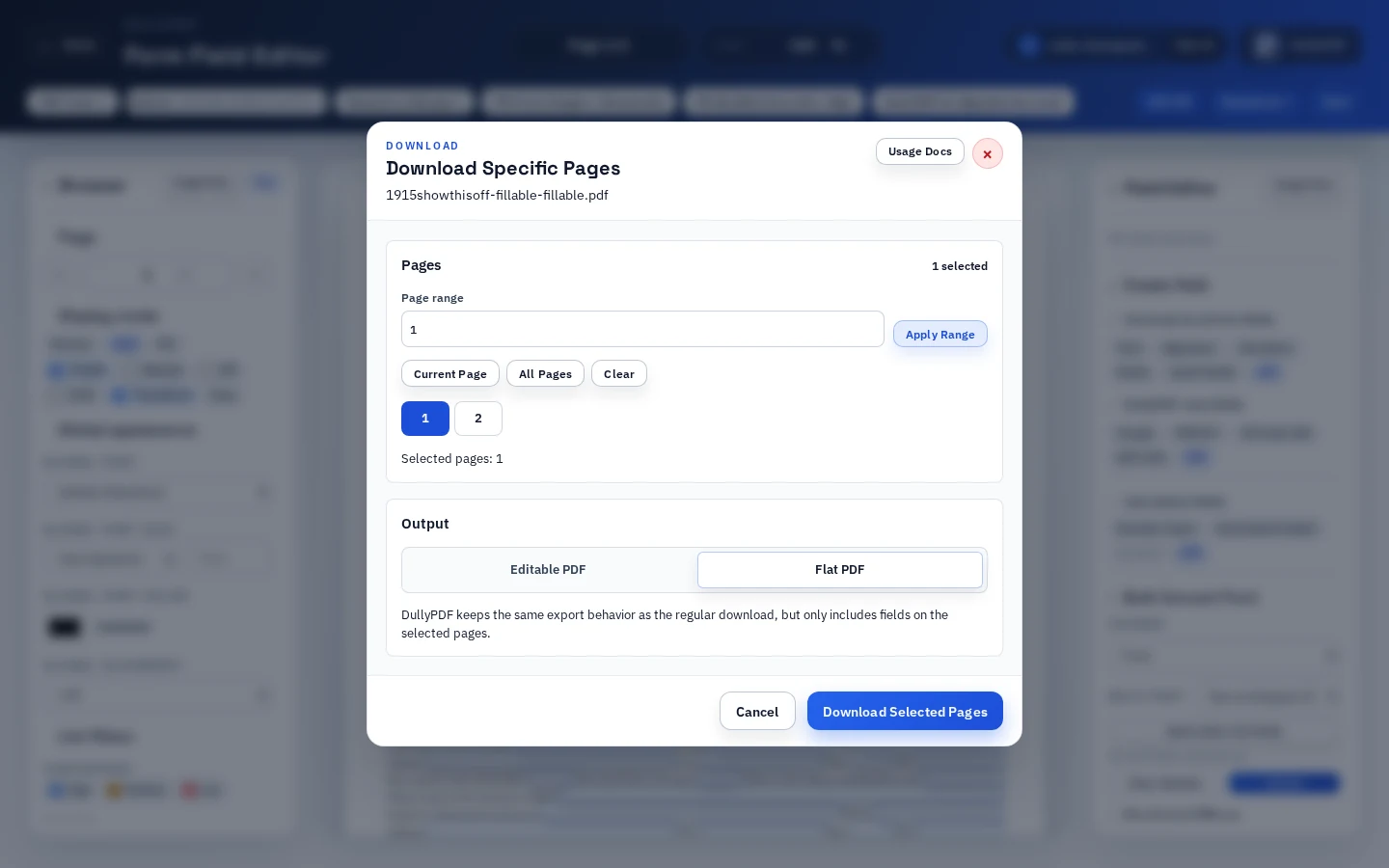
The safest split path for an ad hoc output is the Download menu. Download specific pages lets the operator choose a page range, select flat or editable output, and export only those pages without changing the active workspace PDF. The original template stays open and intact.
That matters when the team needs a partial copy for a recipient, an internal review packet, a supporting attachment, or a final record that should include only some pages. The split is an output decision, not a template mutation.
If the template should permanently remove pages, use PDF Tools and Manage Pages instead. That path stages page deletion before rewriting the active source PDF. After the change, fields on deleted pages are removed and fields on kept pages remain part of the active template workflow.
This is the right path when a recurring form has cover pages, instruction pages, duplicate sheets, or obsolete sections that should not stay in the saved template. Because the source document changes, it should be followed by the same field QA you would run after any page edit.
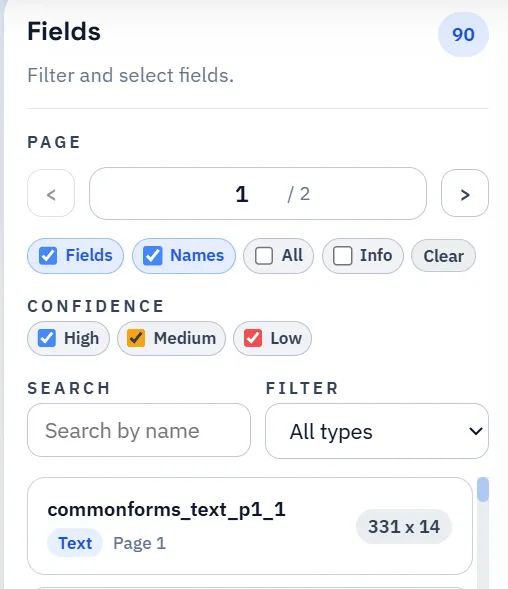
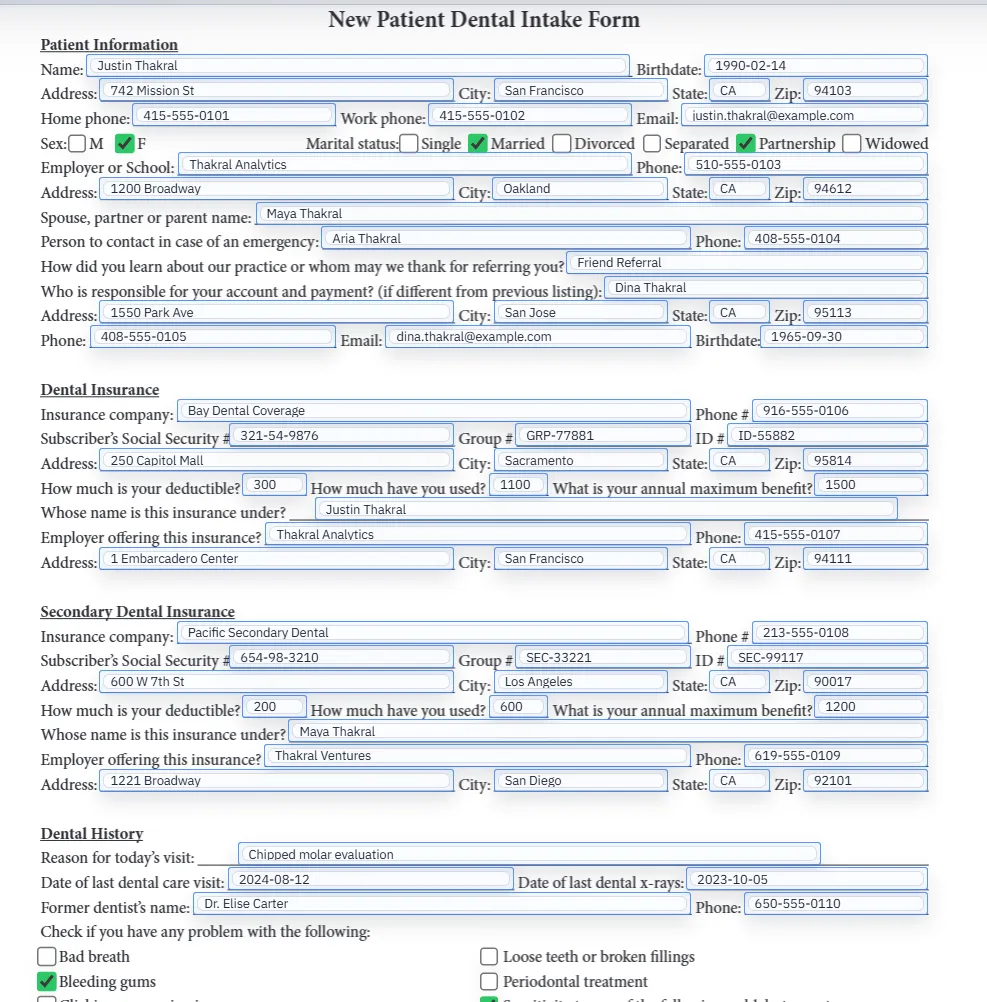
Selected-page export includes fields that live on the chosen pages and remaps those fields into the output page order. Fields on omitted pages are not included because those pages are not part of the split file. That is usually what the operator wants, but it means page selection needs to account for dependencies.
If a selected page references information, signatures, checkbox context, or calculated values that appear on an omitted page, the output may be incomplete even though the selected pages exported correctly. Include the dependent pages or build a separate reviewed template for that narrower document.
The page picker supports common range syntax such as individual pages, ranges, reverse ranges, all, and last. That makes it fast to export pages like 1-2 and 5 without manually deleting the rest of the document.
For recurring work, write down the intended range and test it with a representative record. A split workflow should be predictable enough that another operator can choose the same pages and understand why those pages belong together.
If the same page subset is needed repeatedly, do not keep treating it as an ad hoc split forever. Create or save a template that represents that subset, review its fields, and use that template directly through Search & Fill, Fill By Link, API Fill, or signing.
That keeps repeat workflows cleaner. One-off selected-page downloads are useful, but recurring documents deserve their own template boundary so field names, mappings, output behavior, and QA expectations stay stable.
Before sending a split output, confirm that the selected pages include the required context, the output mode matches the recipient need, fields on kept pages are populated correctly, and no signature or calculation dependency was left behind on an omitted page.
That review is especially important when the partial PDF will become a final record. A split file can be technically valid while still missing the page that explains a checkbox, contains a signature, or carries a total that another page references.
Need deeper technical details about split fillable pdf forms? Use the Rename + Mapping docs and Search & Fill docs to validate exact behavior.
Yes. Use Download specific pages to export a selected page subset as flat or editable output without changing the active workspace PDF.
Fields on selected pages are included and remapped into the new output pages. Fields on omitted pages are not included.
No. It creates a one-off selected-page output. Use Manage Pages when the active source PDF itself should be trimmed.
Not as a blind batch splitter. The current workflow exports one reviewed page subset at a time; recurring subsets should become saved templates or groups.
Use flat output for final recipient copies and records. Use editable output when someone needs to continue working in live PDF fields.
Selected-page exports are strongest after the template has already been reviewed. The split output should inherit that quality instead of becoming a shortcut around QA.
Use these docs pages to verify the exact DullyPDF behavior behind split fillable pdf forms before you ship it as a repeat workflow.
These adjacent workflow pages cover nearby search intents teams compare while evaluating split fillable pdf forms.