Commercial workflow page

Add Barcodes to Work Order PDFs

Create work order PDF templates with barcode or QR helper fields so technicians, dispatch teams, and back-office staff can scan the right record quickly.

Workflow examples for Work Order Barcode PDF

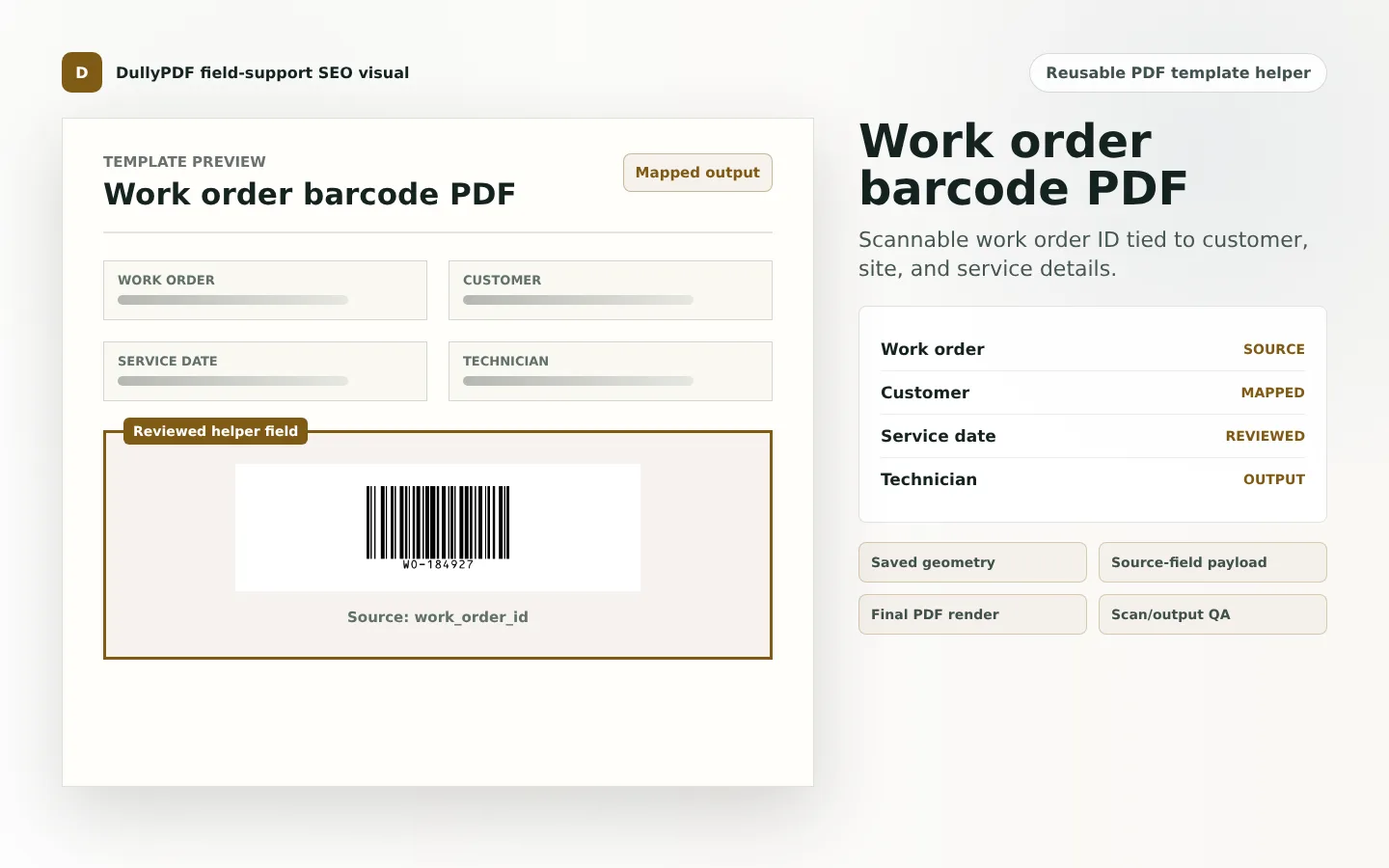
A DullyPDF PDF template preview showing a work order barcode field generated from a work order source value.
Work order barcodes are strongest when the scannable ID matches the human-readable work order details on the PDF.
Filled PDF preview representing a final work order output after mapped values have been applied.
Use a linear barcode for scanner-driven IDs and a QR code when the document should open a web record.

Why work order PDFs are a strong barcode use case

Work orders often travel between dispatch, field staff, customers, and back-office teams. The PDF may contain service details, customer information, technician notes, dates, and asset references. A scannable code helps the team jump back to the right operational record instead of manually searching by name or job number.

The key is to make the code part of the template workflow, not a pasted decoration. If the barcode or QR value comes from the same work order data as the rest of the PDF, the completed document is easier to scan and easier to audit later.

Choose 1D barcode for scanner IDs and QR Code for record lookup

If the receiving workflow uses handheld scanners and expects a short work order ID, a 1D barcode can be the best fit. If field staff or customers need to open a portal, upload evidence, check status, or view a web record, QR Code is usually the better choice.

DENSO WAVE describes QR Code as a two-dimensional code with error correction, which helps explain why QR is common for real-world mobile scanning.1 Work order PDFs often need that phone-friendly scan path.

How to keep the barcode and work order data aligned

Map the work order ID or lookup URL as a normal source field first. Then point the helper field at that source value. That makes the barcode output a generated view of the record data rather than a second manually maintained value.

For repeated work order output, use one canonical template per document type. If every crew or region has a slightly different PDF, decide whether those are real layout differences or just legacy variations that should be consolidated.

Final PDF scan testing for field conditions

Work order PDFs are often printed, folded, photographed, emailed, or viewed on mobile devices. Test the final PDF under the conditions the field team will actually use. A QR code that scans in a browser preview may fail after being printed too small or placed near a smudged stamp.

Keep a human-readable work order ID near the code. The barcode should speed up lookup, not become the only way to identify the job.

Validate the work order barcode pdf workflow with one real record

A useful work order barcode pdf test starts with one document your team already recognizes, not a perfect demo PDF. Open the existing file, review detection, rename ambiguous fields, confirm checkbox and radio behavior, and save the template only after the field list matches the way the document is used in practice.

Then fill one representative record end to end. Include long names, blank optional values, dates, yes/no choices, and any calculated or scannable fields the page depends on. That single controlled run exposes most template issues before they become repeated output problems.

Choose data and output paths for work order barcode pdf

Search & Fill is the right first path when an operator should pick a record and inspect the result before export. It works with row data from CSV, XLSX, JSON, or stored respondent records. SQL and TXT files should be treated as schema-only mapping inputs; database-backed production workflows should query the database elsewhere and send JSON through API Fill.

Output mode matters too. Editable PDFs are useful when someone will continue working in live fields. Flat PDFs are safer when the completed record goes to customers, employees, agencies, signers, or archive systems because the visible values are baked into the page instead of depending on the recipient PDF viewer.

Production checklist for work order barcode pdf

The work order barcode pdf workflow is ready to reuse when a teammate can clear the document, rerun the same source record, and produce the same visible PDF without remembering hidden cleanup steps. If the result depends on one person knowing which field to fix manually, the template still needs review before it belongs in a repeat workflow.

  • The saved template uses stable field names and reviewed field types.
  • Source headers or API keys match the template schema without ambiguous duplicates.
  • Checkbox, radio, calculated, image, barcode, and signature fields have been tested if the workflow uses them.
  • At least one flat output and one editable output have been opened in the PDF viewers recipients are likely to use.

Why teams use Work Order Barcode PDF

  • Tie a work order ID, lookup URL, or tracking reference to the PDF template itself.
  • Use 1D barcode for short scanner IDs or QR Code for web record lookup and field-team portals.
  • Generate final work order PDFs from mapped data so the code and visible work order details stay synchronized.

Implementation signals for Work Order Barcode PDF

  • DullyPDF barcode helpers can render QR, PDF417, and 1D barcode output into final PDF page content.
  • QR and 1D helpers encode one configured source value, which fits work order IDs and lookup URLs.
  • Search & Fill and API Fill can drive completed PDFs from structured work order records.
  • Static code images are weaker because the code can drift from the visible work order data.

Need deeper technical details about work order barcode pdf? Use the Rename + Mapping docs and Search & Fill docs to validate exact behavior.

Frequently asked questions about Work Order Barcode PDF

Can I add a barcode to a work order PDF?

Yes. DullyPDF can add 1D barcode or QR Code helper fields to a work order PDF template and render them into final output.

Should a work order use a barcode or QR code?

Use a 1D barcode for short scanner IDs. Use QR Code when the scan should open a work order page, portal, or record lookup URL.

Can the barcode come from a work order database field?

Yes. Map the work order ID or lookup URL to the template, then connect the helper field to that source value.

Legal footnotes and sources for Work Order Barcode PDF

  1. 1.DENSO WAVE | What is a QR Code?

Related setup docs

Docs for Work Order Barcode PDF

Use these docs pages to verify the exact DullyPDF behavior behind work order barcode pdf before you ship it as a repeat workflow.

Related routes for Work Order Barcode PDF

These adjacent workflow pages cover nearby search intents teams compare while evaluating work order barcode pdf.