Commercial workflow page

Add Code 128 Barcodes to PDF Forms

Add Code 128 style 1D barcode helper fields to reusable PDF templates for internal IDs, work orders, asset tags, and tracking references.

Workflow examples for Add Code 128 Barcode to PDF

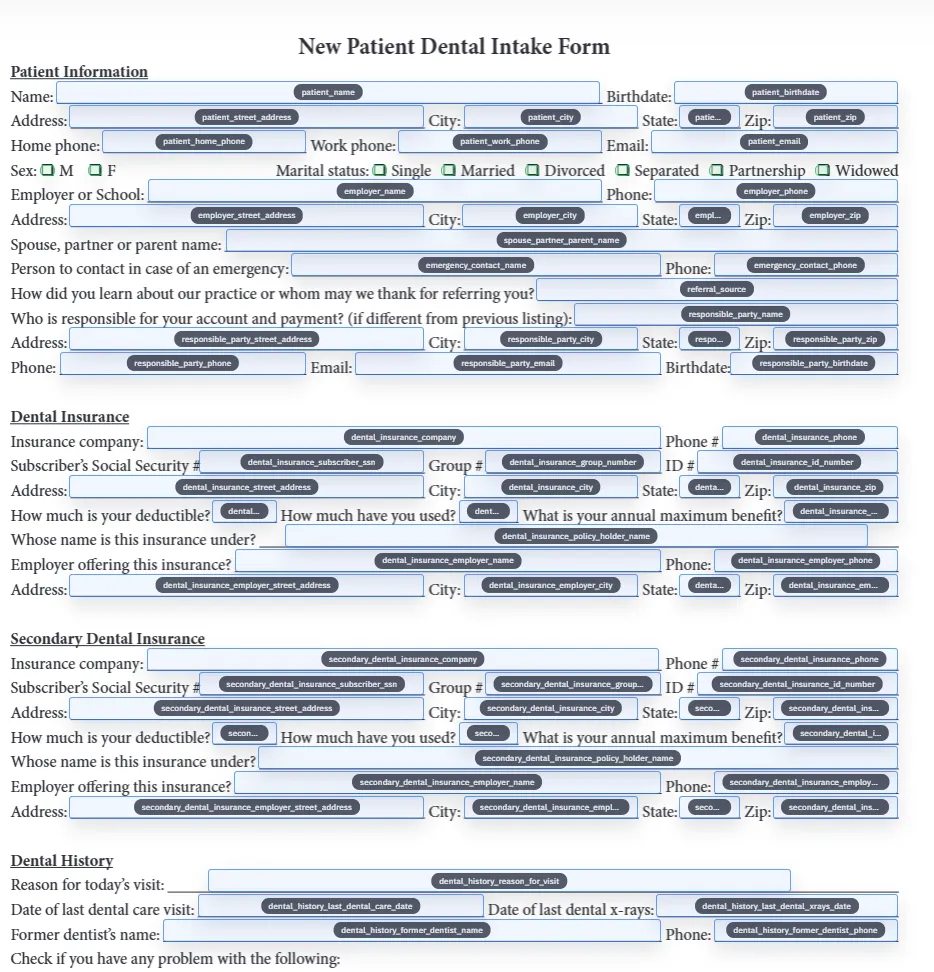
A DullyPDF PDF template preview showing a Code 128 barcode field generated from a short internal source value.
Code 128 helper fields fit controlled internal identifiers that should scan from the final PDF.
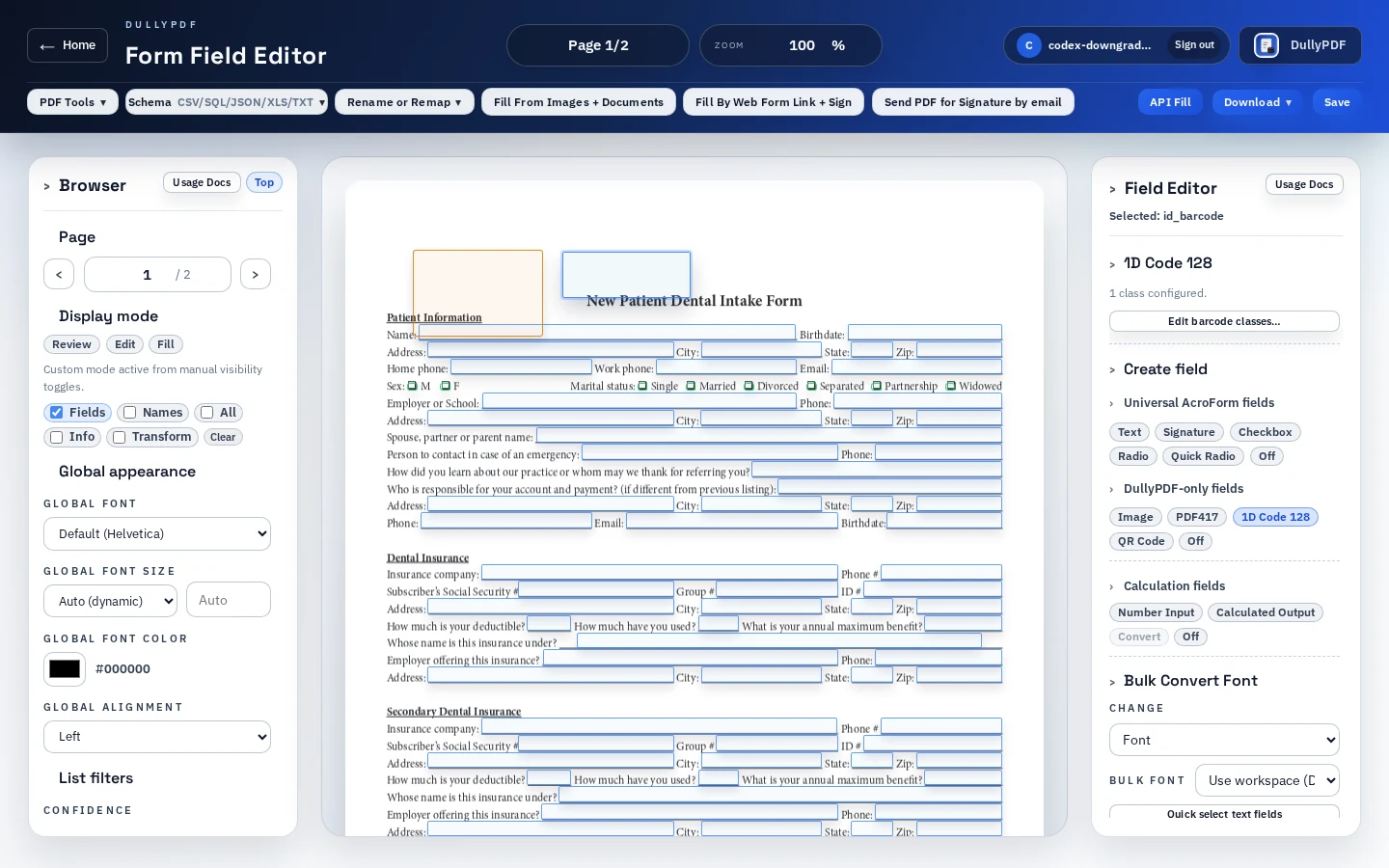
Rename and schema mapping view for a saved PDF template before Code 128 output is connected to a source value.
Code 128 is the focused 1D path; use the broader 1D page when comparing linear barcode options.

When Code 128 belongs in a PDF form

Code 128 is a practical linear barcode choice when the value is a short controlled identifier. In PDF workflows, that usually means an internal ID, asset number, work order number, member ID, ticket number, or tracking reference that a scanner should recover quickly from the completed document.

DullyPDF supports the reusable-template version of that workflow. The barcode field lives on the PDF template, the payload comes from one configured source value, and the final PDF contains the rendered barcode image where the scanner expects it.

Code 128 versus GS1-128, UPC, and EAN

This distinction matters. GS1 US describes GS1-128 as a subset of Code 128 that can carry supply-chain attribute data and uses GS1-specific structures such as FNC1 and Application Identifiers.1 That is not the same as generating an internal Code 128 style barcode for a PDF workflow.

DullyPDF should be used for controlled internal template output, not as the authority for retail product barcodes, GS1 logistics labels, or packaging compliance. If the barcode will be used by external trading partners, validate the relevant GS1 or scanner requirements before putting it into a PDF.

How to set up a Code 128 PDF helper cleanly

Start with the human-readable ID field. Make sure the ID is present, named clearly, and mapped to the right schema column if the template will be filled from CSV, API, or a database. Then add the 1D barcode helper and connect it to that same value.

Keep the readable ID near the barcode. Barcode scans fail, paper gets damaged, and support teams still need a fallback. The best PDF output lets the scanner and the human reviewer confirm the same value.

  • Use short stable IDs, not long paragraphs or URLs.
  • Keep the barcode on a clean background with enough quiet space.
  • Test valid and invalid ID values before publishing the template.

Why this is more useful than a static Code 128 image

Static barcode generators are useful for one-off output. They are weaker for recurring PDFs because someone still has to generate the image, paste it, align it, and replace it when the source value changes.

A DullyPDF helper keeps the placement in the saved template. When the source ID changes by record, the generated PDF changes with it. That is the workflow intent this page should satisfy.

Final scan testing

Do not judge a Code 128 field only by the editor preview. Export a completed PDF, open it outside DullyPDF, print or zoom it at the expected size, and scan it with the same device the team will use in production.

If the scan fails, the fix is usually one of four things: clean the source value, increase the barcode size, add quiet space, or move the code away from visual clutter on the page.

Why teams use Add Code 128 Barcode to PDF

  • Place a Code 128 style helper region inside an existing PDF layout instead of pasting one-off barcode images.
  • Generate the barcode from one controlled source value so the scannable ID matches the visible PDF record.
  • Render the barcode into final PDF page content for print, email, archive, and scanner workflows.

Implementation signals for Add Code 128 Barcode to PDF

  • DullyPDF 1D barcode helpers currently generate Code 128 style output from exactly 9 digits.
  • Code 128 style output is a strong fit for internal IDs, asset tags, work order numbers, and tracking references.
  • This is not a GS1-128, UPC, EAN, retail packaging, or point-of-sale barcode issuance workflow.
  • Editable exports preserve helper metadata for DullyPDF reopen; final exports stamp barcode output into page content.

Need deeper technical details about add code 128 barcode to pdf? Use the Rename + Mapping docs and Search & Fill docs to validate exact behavior.

Frequently asked questions about Add Code 128 Barcode to PDF

Can I add a Code 128 barcode to a PDF form?

Yes. DullyPDF can place a 1D barcode helper field on a PDF template and render Code 128 style output from one configured source value.

What values work best for Code 128 PDF output?

Short controlled identifiers work best, such as internal IDs, asset tags, work order numbers, and tracking references.

Is this a GS1-128 barcode generator?

No. DullyPDF 1D barcode helpers are for internal PDF template workflows, not GS1-128 logistics labels, UPC/EAN issuance, or retail barcode compliance.

Does the barcode stay scannable after export?

Final exports and generated fills stamp the barcode image into page content. You should still scan-test the final PDF at the expected size.

Legal footnotes and sources for Add Code 128 Barcode to PDF

  1. 1.GS1 US | What is a GS1-128 barcode?

Related setup docs

Docs for Add Code 128 Barcode to PDF

Use these docs pages to verify the exact DullyPDF behavior behind add code 128 barcode to pdf before you ship it as a repeat workflow.

Related routes for Add Code 128 Barcode to PDF

These adjacent workflow pages cover nearby search intents teams compare while evaluating add code 128 barcode to pdf.