Commercial workflow page

Add a Calculated Field to an Existing PDF Form

Upload an existing PDF, add number inputs, build a safe formula, and place a read-only calculated output where the result belongs.

Workflow examples for Add Calculated Field to PDF

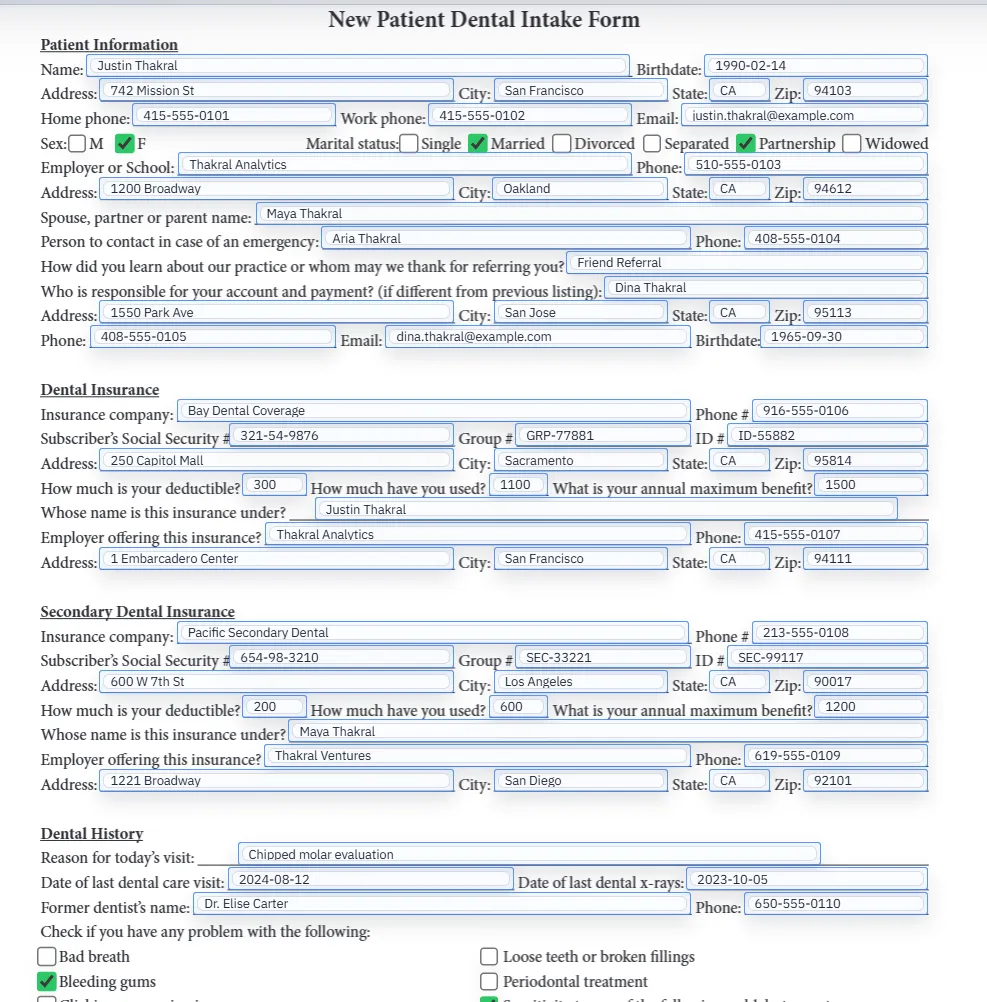
DullyPDF template editor preview showing a calculated output added to an existing PDF form.
Add the source number inputs first, then place the calculated output where the derived value belongs on the existing PDF.
Filled PDF preview after source values and computed outputs have been applied.
The practical quality check is the generated PDF, not only whether the formula looked correct while editing.

Start by making the source PDF a reliable template

Do not begin by drawing the total field. Start by uploading the existing PDF and cleaning the ordinary fields first. If the source number inputs are missing, poorly named, or placed on the wrong lines, the calculated output will only hide a weaker template underneath.

A good first pass is to detect or add the source fields, rename them clearly, and test one representative fill. Once the numeric inputs are trustworthy, the calculated field can be added with less guesswork.

Add number inputs before calculated outputs

A calculated output needs dependable inputs. In DullyPDF, number inputs are editable fields that users, data rows, respondents, or API callers can fill. The calculated output is read-only and should receive its value only from the formula.

That separation keeps the workflow predictable. If a user can type directly into the total, the template can drift away from the formula. If the total is read-only, the output remains derived from the source numbers.

Build the formula from field references

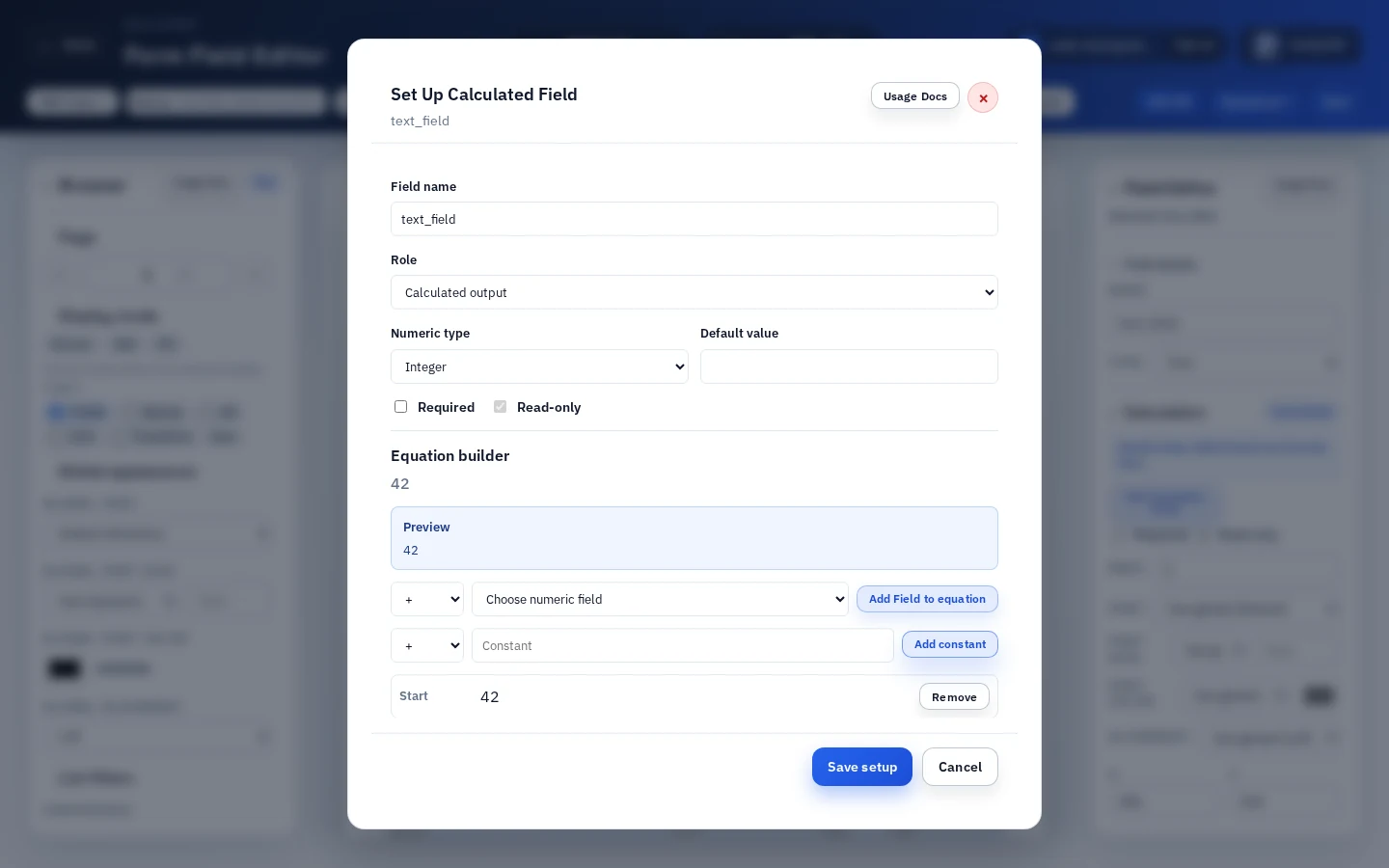
The formula should reference actual template fields, not visual labels on the page. DullyPDF uses a safe formula model with field references, constants, unary minus, and basic arithmetic. The editor can then validate missing dependencies and detect cycles before the template is saved.

This is narrower than custom Acrobat scripting by design. It covers the common calculation jobs most recurring forms need while keeping the formula inspectable and reusable across browser, backend, and PDF export workflows.

Preview the result before export

After the formula is saved, fill the source inputs and inspect the calculated output preview. This catches wrong dependencies, reversed operands, missing values, and formatting assumptions before the PDF is downloaded or published.

For reusable templates, test more than one record. A formula that works for a small example can still expose divide-by-zero behavior, blank-input behavior, or field-name mistakes when real data arrives.

Choose editable or flat output based on the recipient

If the next person needs to keep filling live fields in Acrobat, export an editable PDF. If the document is finished, export a flat PDF so the computed value is baked into the page. This is the same recommendation DullyPDF uses for Fill By Link receipts, external recipients, and signing source documents.

The right output mode depends on the job after export, not on the fact that the source template contains calculations.

Validate the add calculated field to pdf workflow with one real record

A useful add calculated field to pdf test starts with one document your team already recognizes, not a perfect demo PDF. Open the existing file, review detection, rename ambiguous fields, confirm checkbox and radio behavior, and save the template only after the field list matches the way the document is used in practice.

Then fill one representative record end to end. Include long names, blank optional values, dates, yes/no choices, and any calculated or scannable fields the page depends on. That single controlled run exposes most template issues before they become repeated output problems.

Choose data and output paths for add calculated field to pdf

Search & Fill is the right first path when an operator should pick a record and inspect the result before export. It works with row data from CSV, XLSX, JSON, or stored respondent records. SQL and TXT files should be treated as schema-only mapping inputs; database-backed production workflows should query the database elsewhere and send JSON through API Fill.

Output mode matters too. Editable PDFs are useful when someone will continue working in live fields. Flat PDFs are safer when the completed record goes to customers, employees, agencies, signers, or archive systems because the visible values are baked into the page instead of depending on the recipient PDF viewer.

Production checklist for add calculated field to pdf

The add calculated field to pdf workflow is ready to reuse when a teammate can clear the document, rerun the same source record, and produce the same visible PDF without remembering hidden cleanup steps. If the result depends on one person knowing which field to fix manually, the template still needs review before it belongs in a repeat workflow.

  • The saved template uses stable field names and reviewed field types.
  • Source headers or API keys match the template schema without ambiguous duplicates.
  • Checkbox, radio, calculated, image, barcode, and signature fields have been tested if the workflow uses them.
  • At least one flat output and one editable output have been opened in the PDF viewers recipients are likely to use.

Why teams use Add Calculated Field to PDF

  • Start from the PDF layout you already use instead of redesigning the document.
  • Add number inputs and calculated outputs as field metadata layered over the PDF.
  • Choose editable output for Adobe-first live workflows or flat output for completed records.

Implementation signals for Add Calculated Field to PDF

  • The formula setup dialog stores a safe formula model, not arbitrary script text.
  • DullyPDF validates dependencies before the calculated field can be saved.
  • Saved templates keep calculation metadata for reopen, Fill By Link, API Fill, and future downloads.

Need deeper technical details about add calculated field to pdf? Use the Rename + Mapping docs and Search & Fill docs to validate exact behavior.

Frequently asked questions about Add Calculated Field to PDF

Can I add a calculated field to an existing PDF?

Yes. DullyPDF adds calculation-capable fields as template metadata over the existing PDF layout, then materializes the computed value during export.

Do I need to write Acrobat JavaScript?

No. DullyPDF uses a safe formula builder. Editable exports can include generated Acrobat-compatible actions, but users do not write arbitrary JavaScript.

Can calculated fields use values from CSV or JSON?

Yes. Source data fills number inputs, and DullyPDF computes calculated outputs during materialization.

Can respondents fill calculated outputs in Fill By Link?

No. Respondents answer number inputs and other visible questions. Calculated outputs are computed by DullyPDF when the PDF is generated.

Legal footnotes and sources for Add Calculated Field to PDF

  1. 1.Adobe Acrobat Help | Configure form fields for calculations and set calculation order

Docs for Add Calculated Field to PDF

Use these docs pages to verify the exact DullyPDF behavior behind add calculated field to pdf before you ship it as a repeat workflow.

Related routes for Add Calculated Field to PDF

These adjacent workflow pages cover nearby search intents teams compare while evaluating add calculated field to pdf.