Commercial workflow page

Add Image Fields to Fillable PDFs Online

Add image fields to fillable PDFs for photos, logos, IDs, and receipts. Upload PNG/JPEG images in DullyPDF and render them into final PDF output.

Workflow examples for Add Image Field to PDF

A DullyPDF PDF template preview showing uploaded photo, reusable image placeholder, and logo image field regions.
Image fields are for visual values that belong inside the completed PDF, such as photos, logos, ID images, receipts, or supporting attachments.
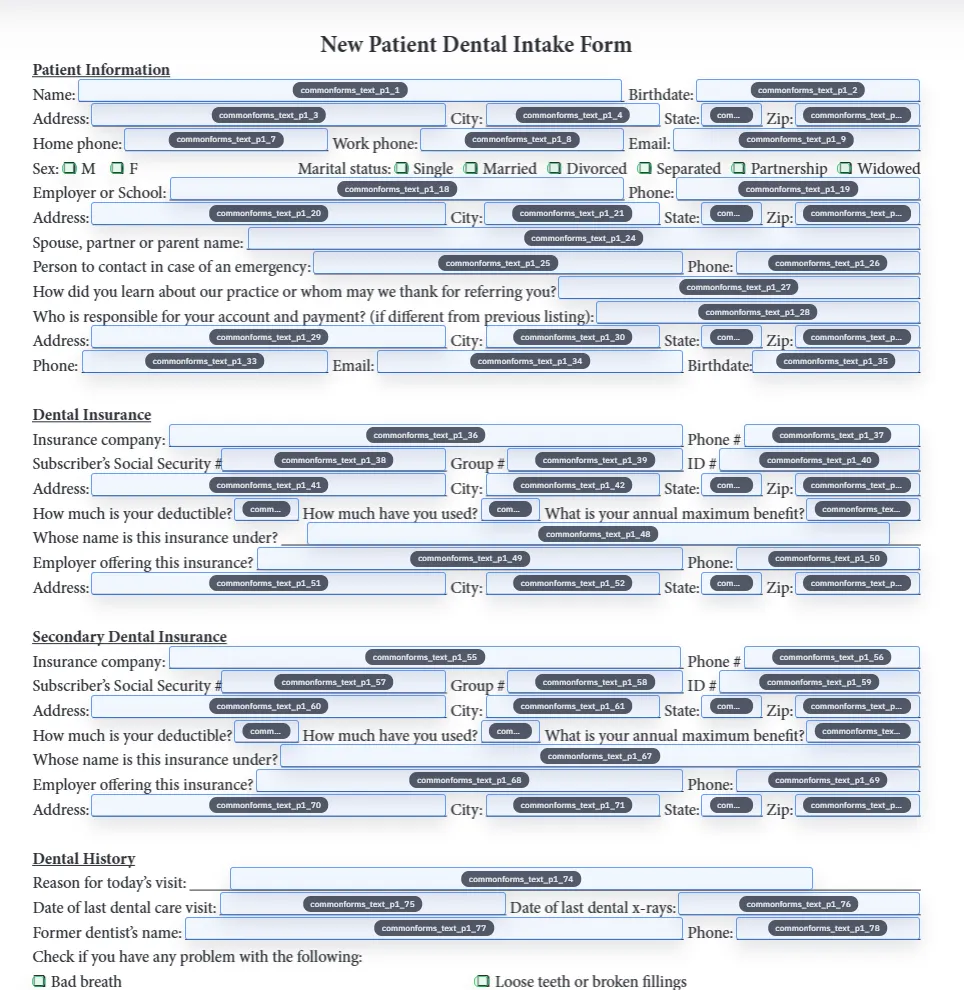
Detected fields overlaid on a source PDF inside DullyPDF before image helper fields are added.
Image fields use the same helper-field model as other DullyPDF-only visual outputs: the template keeps placement metadata, then DullyPDF renders the result into the final PDF.
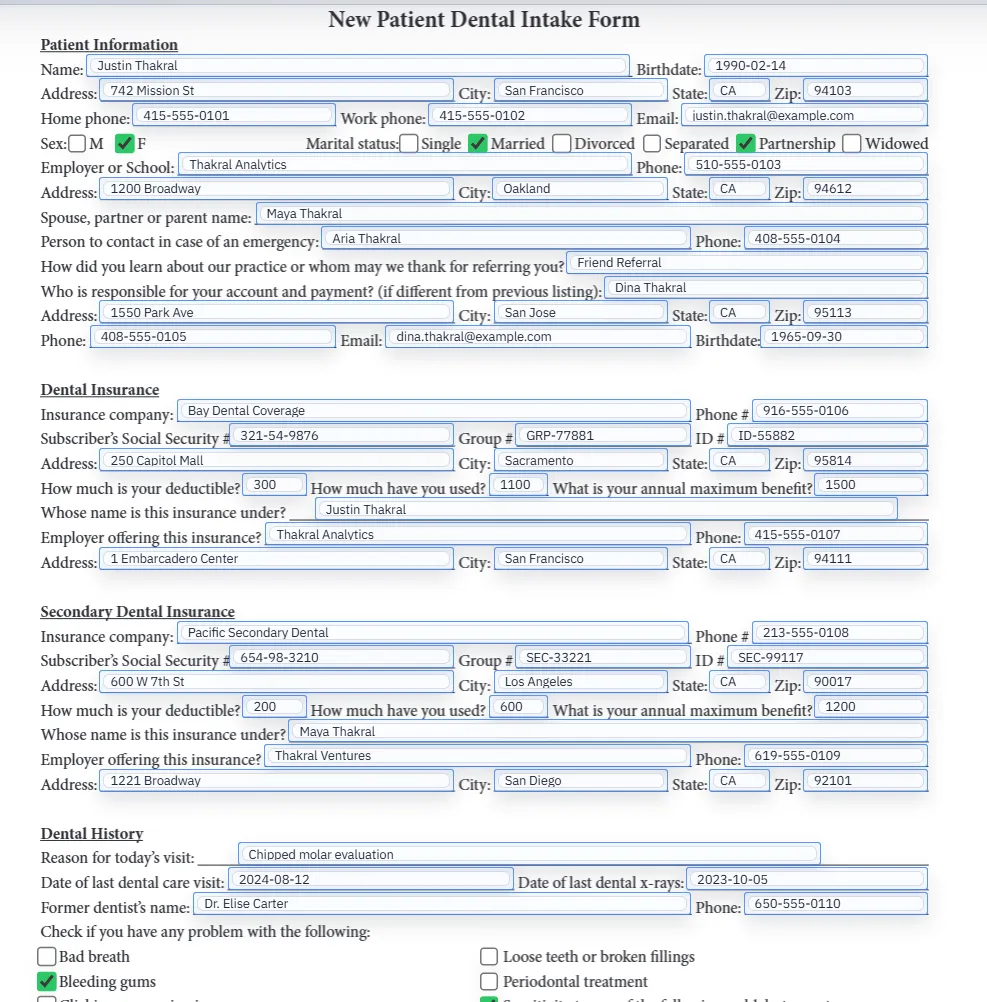
Filled PDF preview representing a final output after template values have been applied.
The quality check is the final PDF output, not just whether an image looked acceptable while editing the template.

What an image field solves in a fillable PDF

A normal fillable PDF is mostly text, checkboxes, radio choices, dates, and signatures. That covers many forms, but it does not cover every visual value that belongs in a completed document. Some workflows need a photo, ID image, receipt, company logo, inspection image, or attachment preview to land in a precise place on the PDF.

That is the intent behind an image field. It is not just decoration. It is a reserved region in a reusable PDF template where a specific visual value can be uploaded, previewed, cleared, saved, and rendered into final output.

  • Use an image field when the image changes by workflow or completed record.
  • Use the original PDF design when the image is permanent branding that should never change.

Image field versus adding a static image to a PDF

Search results often blur two jobs together: insert an image into a PDF and add an image field to a PDF form. Inserting a static image is a one-time edit. It is useful when you already know the exact image and do not need to reuse the placement later. An image field is different because the template keeps a reusable box where image content can be replaced or cleared during the workflow.

DullyPDF is built around the second job. You start from the existing PDF, create or review fields, draw the image helper where the visual content belongs, upload PNG/JPEG content, and export a completed PDF that has the image stamped into the page.

How DullyPDF image fields work

Image fields are DullyPDF-only helper fields. They are not universal native AcroForm fields like text, checkbox, radio, or signature fields. The helper field stores placement metadata and image data so DullyPDF can preview and materialize the visual output when the template is exported.

In the editor, image fields expose PNG/JPEG upload, preview, and clear controls. The same field box can be resized and repositioned like other fields, which means the image placement is reviewed as part of the template rather than pasted into the document as a loose one-off object.

Where image fields are strongest

Image fields are strongest in recurring documents where the layout stays stable but the visual content changes. Membership forms may need a headshot. Vendor packets may need a logo. Reimbursement or inspection forms may need receipt and site photos. Identity workflows may need an ID image beside the typed identity fields.

They are less useful when the image is part of the base document design. A permanent header logo or background watermark should usually live in the source PDF itself. An image field should be reserved for content that the operator may need to upload, replace, or clear as part of a fill workflow.

Setup order for a reliable image-field template

The safest setup order is to make the base template dependable first. Detect or create ordinary text and checkbox fields, clean the geometry, and confirm the document fills correctly. Then add image fields where visual content belongs. That keeps image placement from distracting from the more basic question of whether the form itself is a reliable reusable template.

After placing the image field, upload a realistic sample image. Test a portrait photo, a landscape receipt, or whatever format the workflow will actually use. Resize the field until the final output looks intentional rather than stretched, cropped, or misaligned.

  • Clean ordinary fields first.
  • Draw the image field where the final image should appear.
  • Upload a realistic PNG/JPEG sample.
  • Export and review the completed PDF outside the editor.

Aspect ratio and image quality matter

An image field can be placed correctly and still produce poor output if the source image shape does not match the field shape. Tall portrait photos, wide logos, square thumbnails, and scanned receipts all behave differently. The template should be tested with the same class of image that real users will upload.

The practical QA rule is simple: inspect the final PDF, not only the editor preview. Open the exported file in a normal PDF viewer, zoom in, print if the workflow expects paper, and confirm the image remains readable at the intended size.

Why Adobe and PDF editors talk about layers and image components

Adobe describes form creation as placing fields as a layer on top of the existing form rather than changing what is underneath.1 Adobe also lists Image Field as a form component when creating fillable forms.2 That matches the basic search intent: users want a dedicated place in the PDF where image content can be supplied.

DullyPDF follows the reusable-template version of that idea. The source PDF layout stays intact. The image field sits on top as reviewed template metadata. During final output, DullyPDF renders the selected image into the PDF page content so the result is easy to print, share, or archive.

Privacy and operational review for uploaded images

Images can carry sensitive information that plain text fields do not expose as obviously: faces, IDs, receipts, medical details, signatures, addresses, and background context. Teams should only upload what the document actually needs and should review saved templates before sharing them with other users.

If your image workflow includes regulated data, legal records, or protected health information, validate the full operational and compliance requirements before using any self-serve PDF tool. The image field is a placement and export mechanism; it is not a substitute for document-retention, access-control, or regulatory review.

When a different tool is the better fit

Use a general PDF editor when the job is simply to paste one static image into one file. Use a design tool when you are rebuilding the page layout itself. Use DullyPDF when the image belongs in a repeatable PDF template and should sit beside other fields, saved geometry, Search & Fill review, or later PDF output workflows.

That distinction is what keeps this page focused. The goal is not to compete with every image-to-PDF tool. The goal is to help teams create reusable fillable PDF templates that include visual fields where the completed record needs them.

Why teams use Add Image Field to PDF

  • Place photo, logo, ID, receipt, or attachment-image regions directly on an existing PDF layout.
  • Upload PNG/JPEG content in the editor and preview it inside the exact field region before export.
  • Save the image-field placement with the template so future output uses the same reviewed geometry.

Implementation signals for Add Image Field to PDF

  • Image fields expose PNG/JPEG upload, preview, and clear controls in the Field Editor.
  • DullyPDF-only helper metadata lets editable round-trip exports restore image field placement when reopened in DullyPDF.
  • Flat exports stamp the selected image into PDF page content so the final file does not depend on a live image widget.
  • Image fields are intentionally separate from standard AcroForm text, checkbox, radio, and signature fields.

Need deeper technical details about add image field to pdf? Use the Rename + Mapping docs and Search & Fill docs to validate exact behavior.

Frequently asked questions about Add Image Field to PDF

Can I add an image field to a PDF online?

Yes. DullyPDF lets you draw image helper fields on an existing PDF and upload PNG/JPEG content for the selected field in the editor.

Is an image field the same as inserting a static image into a PDF?

No. A static image edit is one-time page content. An image field is a reusable template region where image content can be uploaded, previewed, cleared, saved, and rendered into final output.

What image formats does DullyPDF support for image fields?

Image fields use PNG/JPEG upload controls in the editor.

Are image fields native PDF form fields?

No. DullyPDF image fields are helper fields. Editable round-trip exports keep metadata for DullyPDF to restore them, while flat final exports stamp the selected image into the page content.

What should I test before using an image-field template?

Test the final exported PDF with realistic images. Check aspect ratio, cropping, readability, print quality, and whether sensitive image content should be stored or shared.

Legal footnotes and sources for Add Image Field to PDF

  1. 1.Adobe Experience League | Work with form fields in Acrobat
  2. 2.Adobe Acrobat | Create forms and add form components, including Image Field

Related setup docs

Use these DullyPDF docs to move from image-field intent into the exact editor behavior for creating fields, uploading image content, saving templates, and exporting final PDFs.

Docs for Add Image Field to PDF

Use these docs pages to verify the exact DullyPDF behavior behind add image field to pdf before you ship it as a repeat workflow.

Related routes for Add Image Field to PDF

These adjacent workflow pages cover nearby search intents teams compare while evaluating add image field to pdf.