Commercial workflow page

Compress Fillable PDF Forms Safely

Run lossless PDF cleanup after template or page changes so a fillable PDF can shrink when possible while pages, fields, and geometry stay stable.

Workflow examples for Compress Fillable PDF Forms

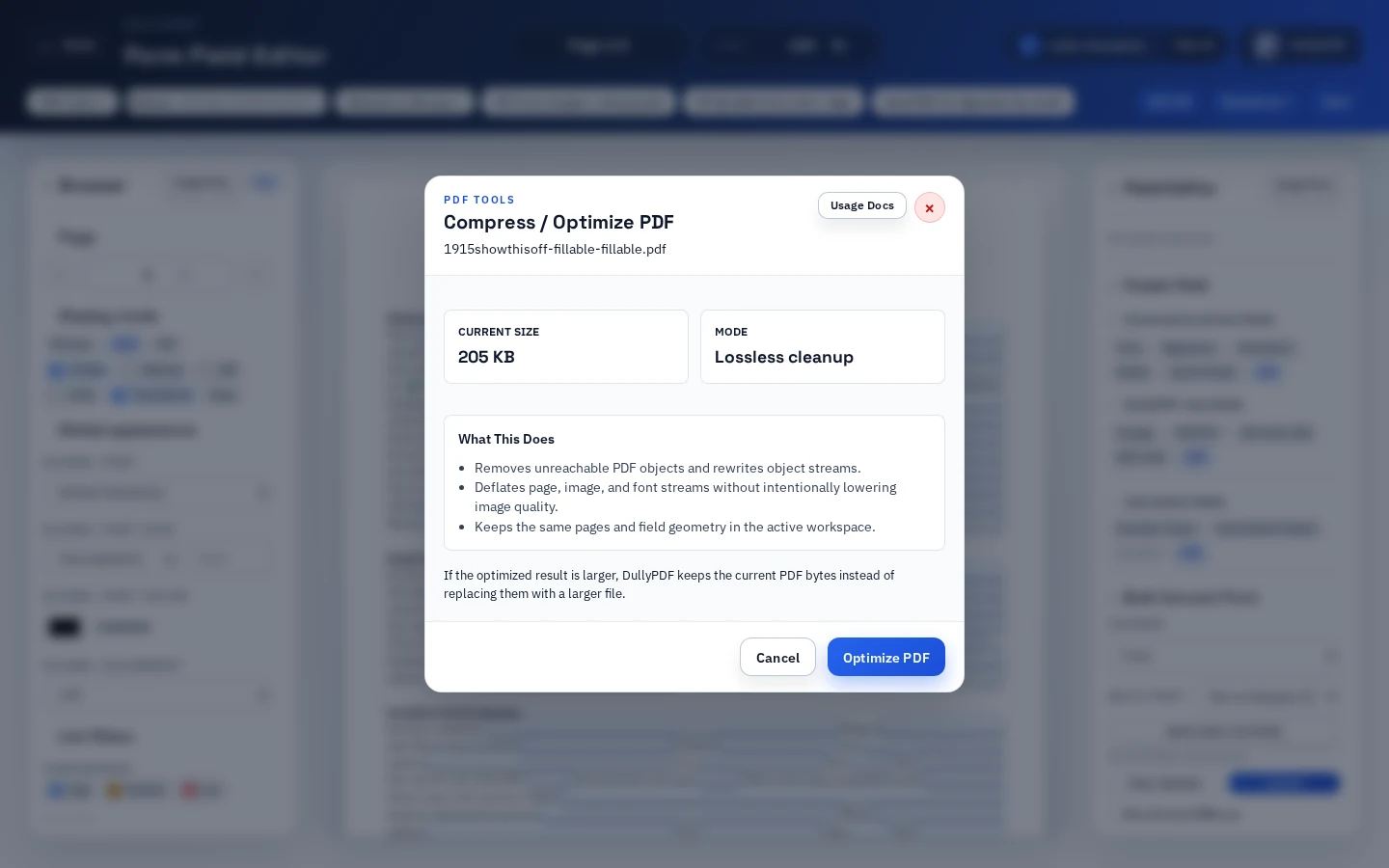
DullyPDF Compress / Optimize PDF dialog showing lossless cleanup for a fillable PDF.
Compression in DullyPDF is a conservative cleanup pass: rewrite object streams, deflate streams, keep pages and field geometry stable, and avoid larger replacements.
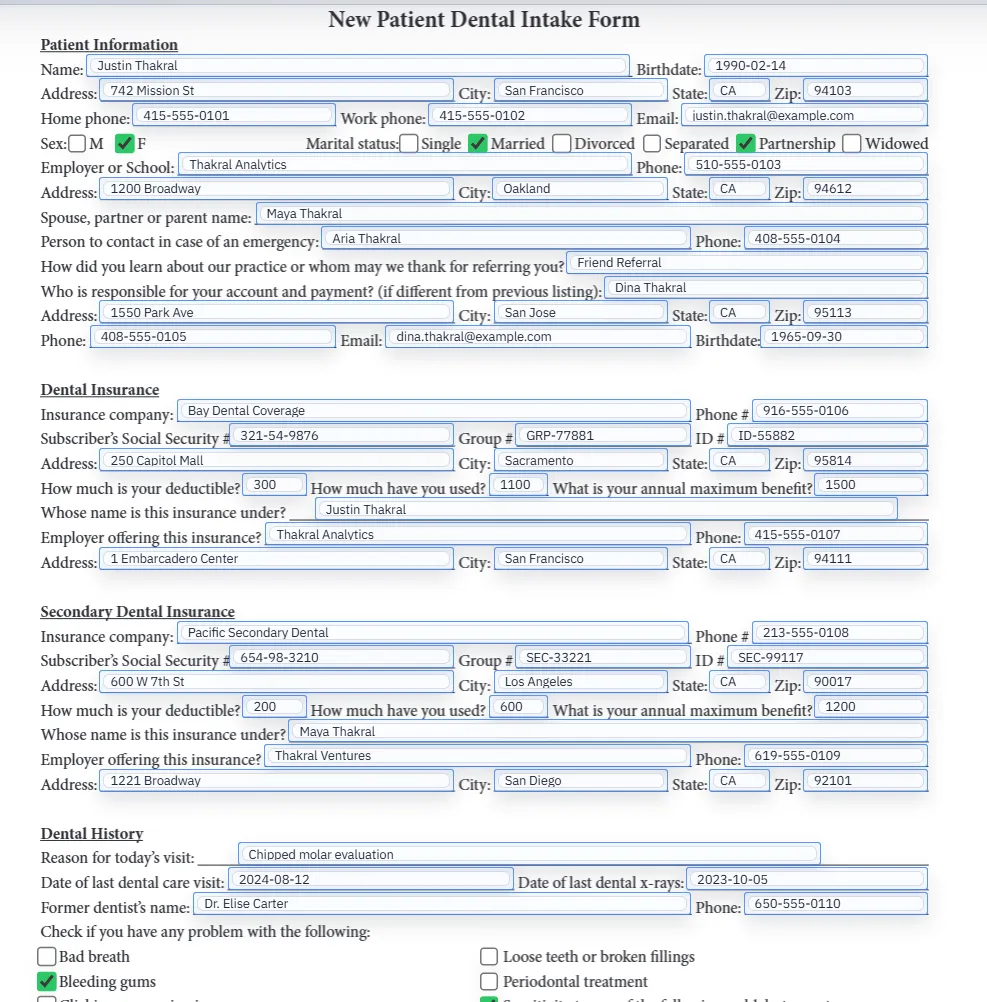
Filled PDF preview after page cleanup and final optimization.
If file size comes from unnecessary pages, remove or split the structure first, then optimize the reviewed template.
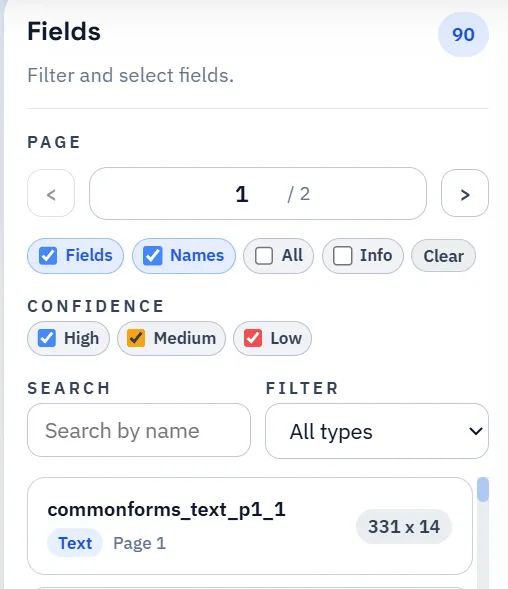
DullyPDF field list used to review field metadata after PDF optimization.
After optimization, field QA still matters because the useful result is a smaller stable template, not compression alone.

Why compression is different for fillable PDF workflows

A normal PDF compression tool usually treats the file as a delivery asset. A fillable PDF template is more than that. It carries a page layout, live fields, DullyPDF metadata, mappings, signatures, barcode helpers, image helpers, calculation outputs, and saved workflow state that may feed links, API output, or repeated Search & Fill runs.

That is why compression should be positioned as a finishing pass, not a shortcut around template review. The useful goal is to clean up PDF bytes after the document has been reviewed, while keeping the same page and field model the operator already approved.

  • Best fit: lossless cleanup after the template structure is stable and file size matters.
  • Poor fit: trying to fix a bloated template before deleting obsolete pages or reviewing fields.

What DullyPDF Compress / Optimize PDF actually does

DullyPDF Compress / Optimize PDF is intentionally conservative. The workflow removes unreachable PDF objects, rewrites object streams, and deflates page, image, and font streams without intentionally lowering image quality. It is a cleanup pass for the active PDF, not a lossy image-downsampling promise.

The dialog labels the mode as Lossless cleanup because the target is stability. The same pages and field geometry remain in the active workspace, so the operator can continue with field review, saving, selected-page output, Fill By Link, API Fill, or signing after the cleanup pass.

What compression should not promise

Some PDFs are already compact. Others are dominated by image data, embedded fonts, or authoring decisions that a lossless cleanup pass should not aggressively rewrite. In those cases, a responsible compression workflow may save little or nothing.

That is not a failure of the template workflow. It is the correct boundary between safe optimization and destructive compression. If a team needs heavy image downsampling, that should be a separate choice with separate quality review, not a hidden side effect of optimizing a fillable form template.

  • No guaranteed file-size reduction for every source PDF.
  • No intentional image-quality reduction in the DullyPDF cleanup pass.
  • No substitute for deleting unnecessary pages when the file is large because the template contains unnecessary pages.

When to run compression in the workflow

The safest order is to finish structural edits first. Merge or insert pages, split selected outputs, permanently delete obsolete source pages when needed, review fields, test one representative fill, and then run compression if file size still matters.

Running compression earlier is usually wasted effort because later page changes rewrite the active PDF again. Run it after the document shape is stable and before the template is saved, published, downloaded, or sent into a signature workflow.

  • After Manage Pages operations such as insert, reorder, rotate, or delete.
  • After confirming field names, geometry, mappings, image helpers, barcode helpers, and calculations.
  • Before final download, template save, Fill By Link publication, API use, or signing when smaller bytes matter.

Why DullyPDF keeps the current bytes if optimization is larger

Compression tools can make a PDF bigger when the source was already optimized or when the rewrite changes object layout without creating enough savings. DullyPDF avoids that regression by keeping the current PDF bytes if the optimized result would be larger.

That behavior is important for operators who are cleaning up production templates. The workflow should never make a file larger just because the user pressed an Optimize button. It should either produce a smaller safe result or preserve the current version.

Compression QA checklist

After compression, review the same things that make a fillable PDF useful: pages, fields, mappings, signatures, barcode helpers, image helpers, calculations, and final output. A smaller file is only helpful if the template still behaves the same way.

For high-stakes or repeat workflows, run one representative fill and compare the output mode users will actually receive. Editable output should preserve live field behavior where intended. Flat output should render the expected values into the page content.

  • Confirm the page count and visual layout did not change.
  • Check field overlays, field list entries, mapped values, signatures, image helpers, barcode helpers, and calculated fields.
  • Run one representative Search & Fill, link response, or API input before relying on the optimized template.
  • Download the same output mode the workflow will use and inspect the final PDF.

Compression is not a substitute for template cleanup

If the PDF is large because it includes unused pages, obsolete packets, duplicates, or instructions that do not belong in the recurring template, page cleanup should happen first. Compression can clean up bytes, but it should not decide which pages or fields are operationally necessary.

The practical rule is simple: remove or split structure deliberately, review the remaining template, then optimize. That keeps compression in its proper role as a safe final cleanup step.

Why teams use Compress Fillable PDF Forms

  • Run lossless cleanup after template review, page management, or selected output checks.
  • Keep the same pages and field geometry in the active workspace.
  • Avoid replacing the current PDF bytes when optimization would make the file larger.

Implementation signals for Compress Fillable PDF Forms

  • Compress / Optimize PDF runs in Lossless cleanup mode from the PDF Tools workflow.
  • The cleanup pass removes unreachable PDF objects, rewrites object streams, and deflates page, image, and font streams without intentionally lowering image quality.
  • DullyPDF keeps the same pages and field geometry in the active workspace after optimization.
  • If the optimized result is larger, DullyPDF keeps the current PDF bytes instead of replacing them with a larger file.

Need deeper technical details about compress fillable pdf forms? Use the Rename + Mapping docs and Search & Fill docs to validate exact behavior.

Frequently asked questions about Compress Fillable PDF Forms

Can DullyPDF compress fillable PDF forms?

Yes. Use PDF Tools > Compress / Optimize PDF to run lossless cleanup on the active PDF while keeping the same pages and field geometry.

Will compression remove PDF form fields?

DullyPDF keeps the same pages and field geometry in the active workspace. Still review the field model and final output after optimization before publishing or signing.

Does compression reduce every fillable PDF?

No. Some PDFs are already optimized or cannot shrink safely with lossless cleanup. If the optimized result is larger, DullyPDF keeps the current PDF bytes.

Does DullyPDF lower image quality to compress PDFs?

No. Compress / Optimize PDF deflates streams without intentionally lowering image quality. Heavy image downsampling should be treated as a separate workflow with its own review.

Should I compress before signing or publishing a Fill By Link?

Compress after page structure, fields, mappings, and output behavior have been reviewed. Then save, publish, download, API enable, or send for signature from the stable optimized template.

Optimization belongs after review

Compression is safest when it follows the same operator review loop as other template changes: page structure, field cleanup, representative fill, output check, then final save or publish.

Docs for Compress Fillable PDF Forms

Use these docs pages to verify the exact DullyPDF behavior behind compress fillable pdf forms before you ship it as a repeat workflow.

Related routes for Compress Fillable PDF Forms

These adjacent workflow pages cover nearby search intents teams compare while evaluating compress fillable pdf forms.