Commercial workflow page

PDF Expense Report Calculations for Reimbursements and Totals

Create reusable expense report PDFs with source expense lines, mileage, adjustments, reimbursement totals, and flat final copies.

Workflow examples for Expense Report Calculations

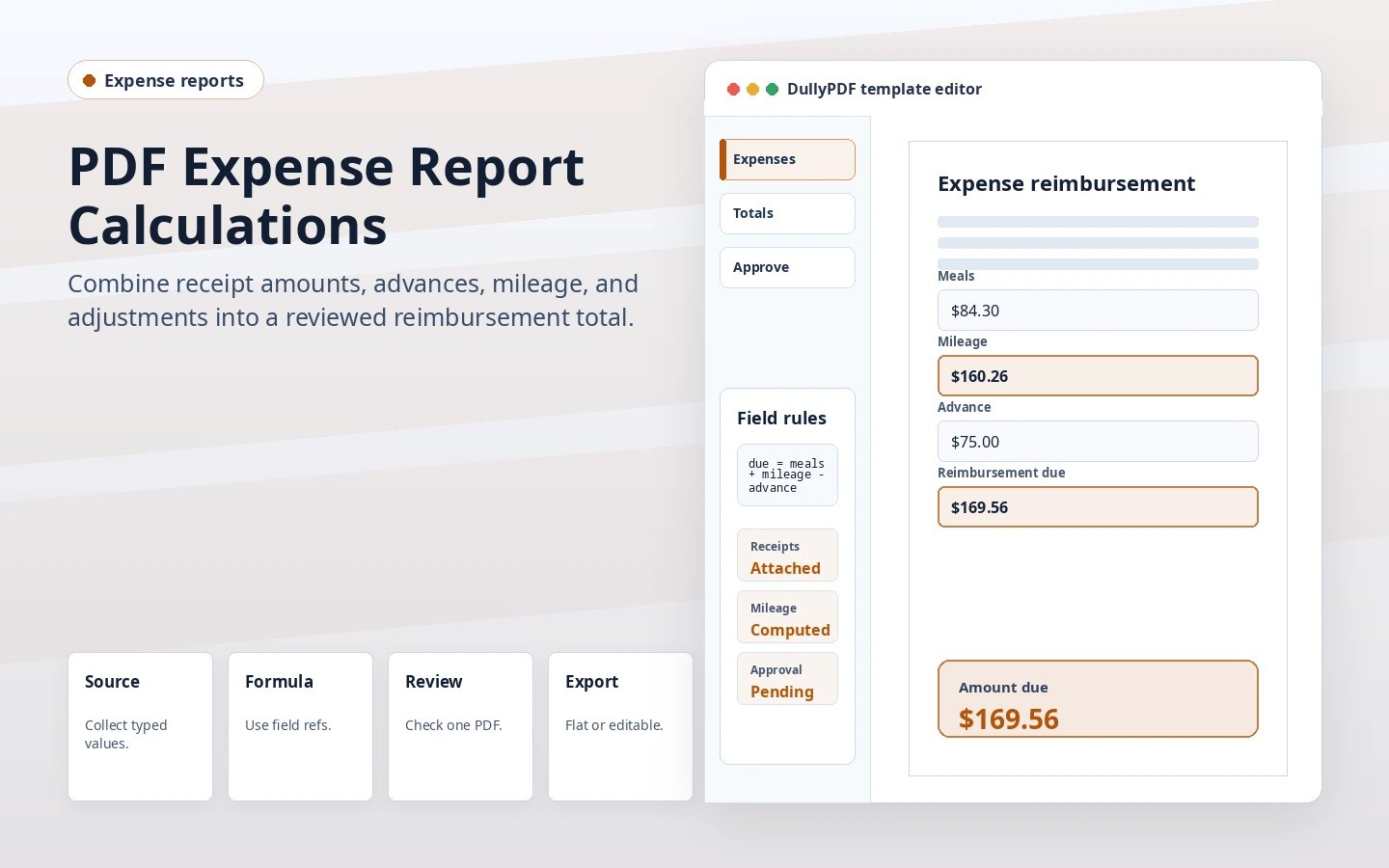
DullyPDF expense report calculation preview showing receipt amounts, mileage, advances, and reimbursement due.
Expense workflows often start from rows of source amounts, mileage, advances, and adjustments.
Flat PDF output used as a stable final reimbursement record.
Final reimbursement records should usually be flat so the approved amount does not depend on live PDF viewer behavior.

Expense reports are a natural fit for source inputs plus totals

Expense reports usually combine itemized amounts, mileage, advances, adjustments, and a final reimbursement total. The source values may come from an employee, a spreadsheet, or an internal system. The final total should be computed consistently.

A calculated PDF template keeps the math attached to the report layout. That helps teams avoid manually retyping totals into a static PDF after the source values are already known.

Model adjustments explicitly

If an expense report needs a manual correction, do not edit the total directly. Add explicit source fields such as adjustment, advance_paid, non_reimbursable_amount, or approved_amount. Then let the reimbursement total calculate from those fields.

This makes the final record easier to audit because every change that affects the total has its own field.

Use flat output for reimbursement records

A completed expense report is usually a record, not a live calculator. Flat output is therefore a better fit for reimbursement approval, accounting storage, and external sharing because the values do not depend on the next PDF viewer.

Editable output still makes sense for internal drafts where another reviewer must adjust source fields before approval.

Validate the expense report calculations workflow with one real record

A useful expense report calculations test starts with one document your team already recognizes, not a perfect demo PDF. Open the existing file, review detection, rename ambiguous fields, confirm checkbox and radio behavior, and save the template only after the field list matches the way the document is used in practice.

Then fill one representative record end to end. Include long names, blank optional values, dates, yes/no choices, and any calculated or scannable fields the page depends on. That single controlled run exposes most template issues before they become repeated output problems.

Choose data and output paths for expense report calculations

Search & Fill is the right first path when an operator should pick a record and inspect the result before export. It works with row data from CSV, XLSX, JSON, or stored respondent records. SQL and TXT files should be treated as schema-only mapping inputs; database-backed production workflows should query the database elsewhere and send JSON through API Fill.

Output mode matters too. Editable PDFs are useful when someone will continue working in live fields. Flat PDFs are safer when the completed record goes to customers, employees, agencies, signers, or archive systems because the visible values are baked into the page instead of depending on the recipient PDF viewer.

Production checklist for expense report calculations

The expense report calculations workflow is ready to reuse when a teammate can clear the document, rerun the same source record, and produce the same visible PDF without remembering hidden cleanup steps. If the result depends on one person knowing which field to fix manually, the template still needs review before it belongs in a repeat workflow.

  • The saved template uses stable field names and reviewed field types.
  • Source headers or API keys match the template schema without ambiguous duplicates.
  • Checkbox, radio, calculated, image, barcode, and signature fields have been tested if the workflow uses them.
  • At least one flat output and one editable output have been opened in the PDF viewers recipients are likely to use.

Why teams use Expense Report Calculations

  • Calculate reimbursement totals from itemized expense and mileage inputs.
  • Fill staff-generated expense reports from spreadsheet exports or collect source values by link.
  • Use flat PDFs for final reimbursement records and receipts.

Implementation signals for Expense Report Calculations

  • DullyPDF supports source number inputs plus read-only calculated outputs.
  • Search & Fill can populate expense templates from structured rows.
  • Fill By Link can collect source expense values before generating the completed PDF.

Need deeper technical details about expense report calculations? Use the Rename + Mapping docs and Search & Fill docs to validate exact behavior.

Frequently asked questions about Expense Report Calculations

Can DullyPDF calculate expense reimbursement totals?

Yes. Expense report templates can use source number inputs and read-only calculated outputs for reimbursement totals.

Can employees submit expense values by link?

Yes. Fill By Link can collect source values, and DullyPDF can generate the calculated PDF later.

Can I fill expense reports from a spreadsheet?

Yes. Search & Fill can populate source expense fields from structured data and compute totals during materialization.

Docs for Expense Report Calculations

Use these docs pages to verify the exact DullyPDF behavior behind expense report calculations before you ship it as a repeat workflow.

Related routes for Expense Report Calculations

These adjacent workflow pages cover nearby search intents teams compare while evaluating expense report calculations.