Commercial workflow page

Reorder Fillable PDF Pages Safely

Move pages inside an active fillable PDF with staged page tools, keep current-page fields traveling with their pages, and review the template before reuse.

Workflow examples for Reorder Fillable PDF Pages

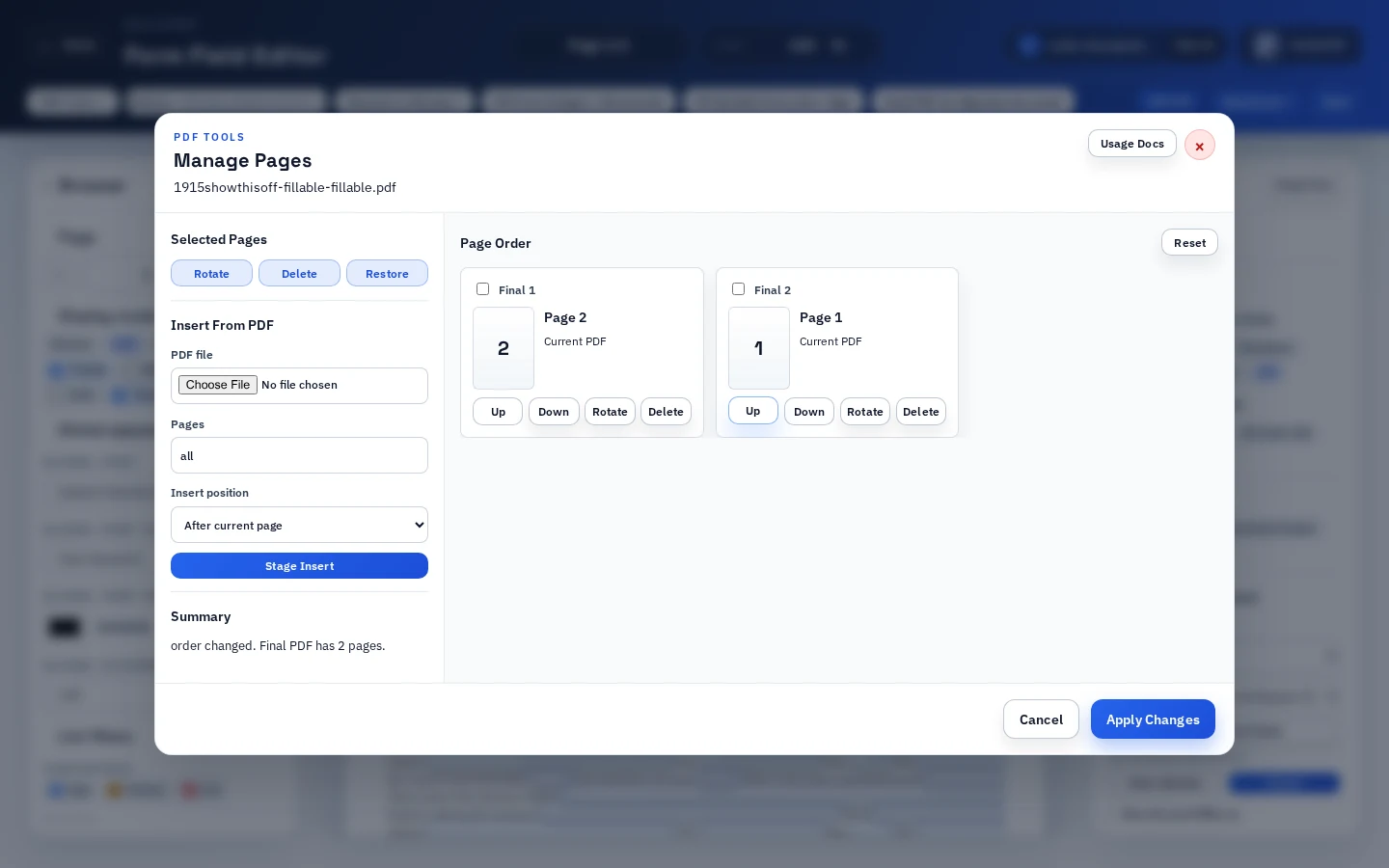
DullyPDF Manage Pages dialog showing page 2 moved ahead of page 1 in the 1915 fillable PDF.
Manage Pages stages the final page order before rewriting the active source PDF, so operators can inspect the sequence before applying changes.
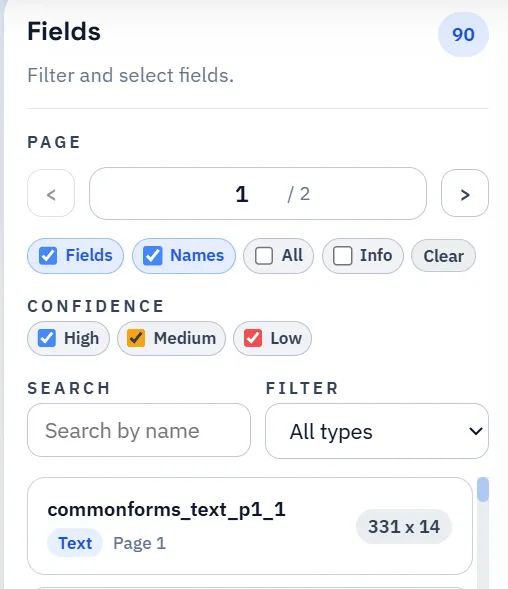
DullyPDF field list used to review field metadata after reordering PDF pages.
After reordering, review the field model because fields can move with their pages while workflow context still needs validation.
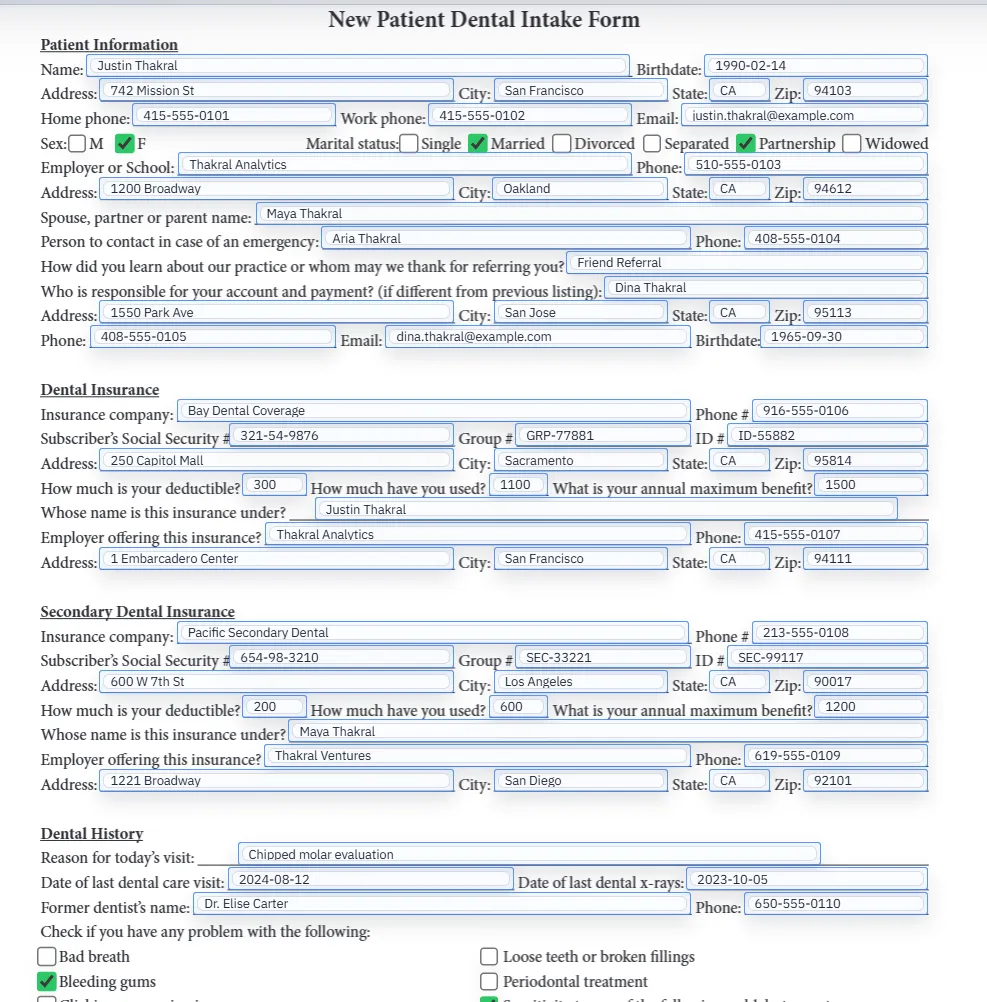
Filled PDF preview after reordered pages have been reviewed and generated.
The final proof is a generated PDF after page order, fields, and output behavior are stable.

Why reordering a fillable PDF needs field-aware review

Reordering pages in a normal PDF is mostly a visual operation. Reordering pages in a fillable PDF template also changes how the operator should reason about fields, page references, mapped values, signature locations, image helpers, barcode helpers, and calculated outputs. A document can look correctly ordered while a workflow dependency still needs review.

DullyPDF treats page order as part of template setup. The page move happens inside Manage Pages, then the resulting template should go back through field review before it becomes a saved template, Fill By Link, API endpoint, signing source, or final download.

  • Best fit: moving pages into the order the recurring template should keep.
  • Poor fit: creating a one-off partial copy for one recipient; selected-page download is safer for that.

Use Manage Pages when the source page order should change

The permanent reorder path is PDF Tools > Manage Pages. Each page card has Up and Down controls, and the Summary panel reports when the order has changed. DullyPDF does not rewrite the active source PDF until the staged plan is applied.

That staging step matters because a page-order mistake can change what reviewers, respondents, or signers see first. Treat the dialog as a planning surface: move pages, inspect the final order, reset if needed, then apply only when the sequence is correct.

What happens to fields when current pages move

Fields on reordered current-PDF pages move with those pages. That keeps field geometry attached to the same visual source page instead of leaving fields behind on the old page number.

This does not remove the need for review. A field may still rely on context from a nearby page, a signature instruction, a calculated total, or a checkbox explanation that moved relative to the rest of the packet. The field can travel correctly while the overall document order still deserves QA.

Check page dependencies before changing the order

Many PDFs are structured as more than isolated pages. An instruction page may explain the next page. A disclosure may need to appear before a signature. A calculation summary may belong after supporting line items. A barcode or QR field may need to stay near the values it represents.

Before applying a reordered template, check those dependencies explicitly. The goal is not just a visually pleasing order. The goal is an order that still works for filling, review, signing, printing, and archiving.

  • Keep instructions, disclosures, and signature pages in a defensible sequence.
  • Check calculation summaries, totals, barcode helpers, image helpers, and checkbox/radio explanations.
  • Run one representative fill after the order changes.

Reorder, split, merge, delete, and compress are different jobs

Reordering changes the sequence of pages in the active source PDF. Splitting exports a selected-page subset. Merging inserts pages from another PDF. Deleting removes pages from the source template. Compression performs lossless cleanup after the document structure is stable.

Keeping those jobs separate makes the workflow safer. If the source template should keep the new sequence, use Manage Pages and reorder. If only one output should use a different subset, use Download specific pages. If the file is large, clean up pages first and optimize after review.

A safe reorder checklist before saving or publishing

After applying page reordering, treat the document like a changed template. The final order should be reviewed visually, but the field model and output behavior need review too.

That review is especially important before Fill By Link, API Fill, or signing because those workflows depend on the saved template state. Once a public link, endpoint, or signing request uses the template, page-order mistakes become harder to catch.

  • Confirm the visible page sequence and final page count.
  • Review field overlays, field names, checkbox/radio groups, signatures, image helpers, barcode helpers, and calculations.
  • Run one Search & Fill row, link response, or API payload through the reordered template.
  • Download the intended output mode and inspect the final PDF before relying on it.

Save only after the page order is stable

A saved DullyPDF template should represent the order the team actually wants to reuse. If the template is still being rearranged, avoid publishing dependent workflows until the page sequence has settled.

Once the order is stable, save the template and continue into the workflow that fits the job: Search & Fill, Fill By Link, API Fill, selected-page output, signing, or compression as a final cleanup pass.

Why teams use Reorder Fillable PDF Pages

  • Stage the final page order before rewriting the active source PDF.
  • Move fields on current PDF pages with the pages they belong to.
  • Review page-dependent mappings, signatures, calculations, and final output before saving or publishing.

Implementation signals for Reorder Fillable PDF Pages

  • Manage Pages provides Up and Down controls for each page card and summarizes staged order changes before applying them.
  • Fields on reordered current-PDF pages move with those pages in the active field set.
  • The final page plan must keep at least one page before DullyPDF applies changes.
  • Page management stays connected to the broader editor workflow, so operators can review fields, save templates, publish links, run API Fill, or send for signature after the page order is stable.

Need deeper technical details about reorder fillable pdf pages? Use the Rename + Mapping docs and Search & Fill docs to validate exact behavior.

Frequently asked questions about Reorder Fillable PDF Pages

Can DullyPDF reorder pages in a fillable PDF?

Yes. Use PDF Tools > Manage Pages, then move page cards with the Up and Down controls before applying the staged source-PDF update.

Do PDF fields move with reordered pages?

Fields on reordered current-PDF pages move with those pages. Review the field overlays and final output after applying the new order.

Does reordering pages change my saved template?

It changes the active source PDF after you apply the staged plan. Save the template only after reviewing the new order and field behavior.

Can I reorder pages without deleting or inserting anything?

Yes. Use only the Up and Down controls in Manage Pages, then apply the staged order when the final sequence is correct.

Should I reorder pages before Fill By Link, API Fill, or signing?

Yes. Reorder and review the source template before publishing a link, enabling API Fill, or sending the filled PDF for signature.

Reordering belongs in template review

Page order is part of the reusable template contract. Apply the order deliberately, then verify fields and output before the template feeds public or automated workflows.

Docs for Reorder Fillable PDF Pages

Use these docs pages to verify the exact DullyPDF behavior behind reorder fillable pdf pages before you ship it as a repeat workflow.

Related routes for Reorder Fillable PDF Pages

These adjacent workflow pages cover nearby search intents teams compare while evaluating reorder fillable pdf pages.