Commercial workflow page

Rotate Fillable PDF Pages Safely

Turn sideways or upside-down PDF pages 90 degrees at a time with staged Manage Pages controls, keep current-page fields traveling with their pages, and review geometry before reuse.

Workflow examples for Rotate Fillable PDF Pages

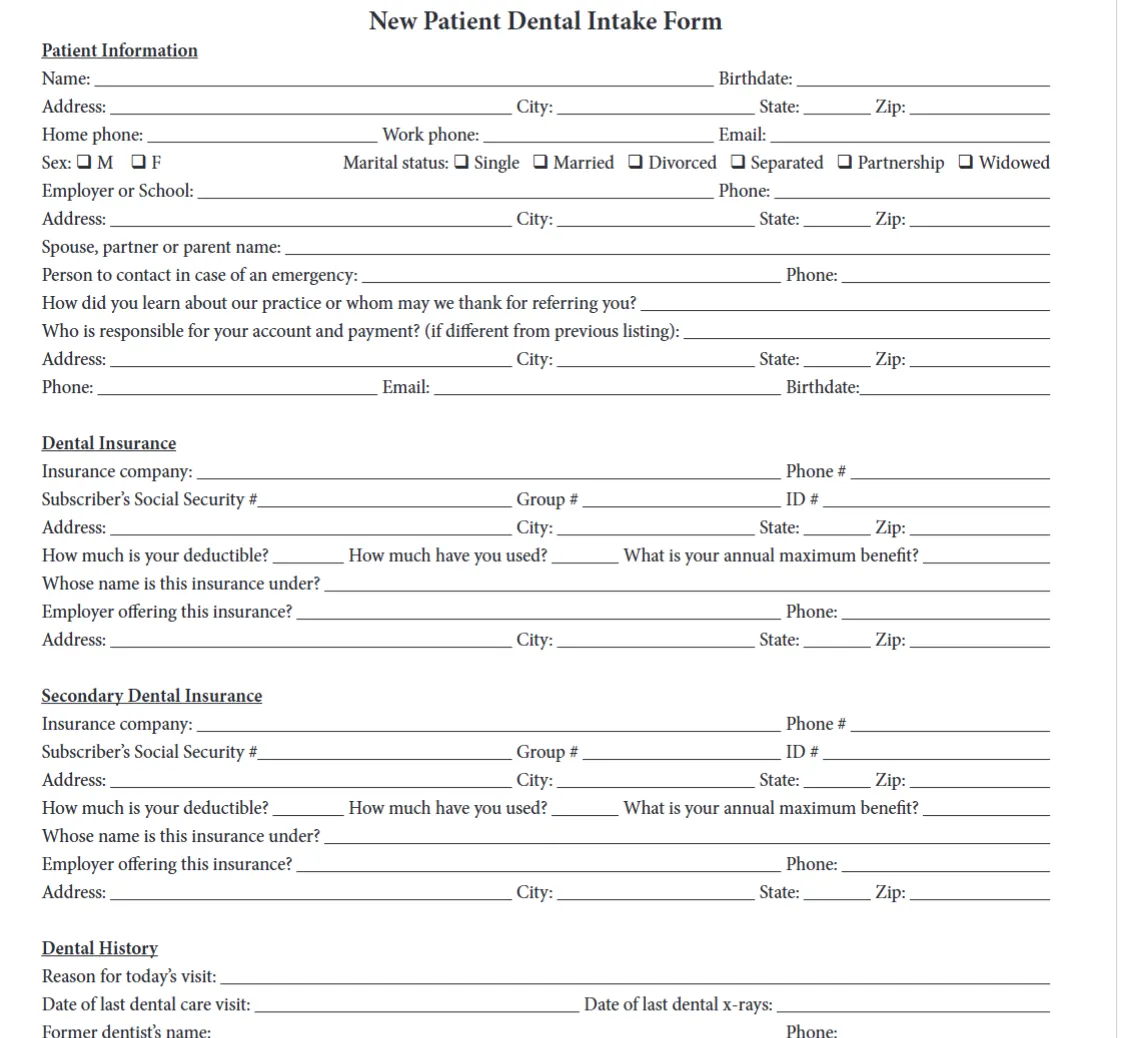
DullyPDF mobile preview of a raw PDF page used to evaluate orientation before staging rotation in Manage Pages.
Orientation is checked against the actual rendered page before staging a 90-degree rotation in Manage Pages.
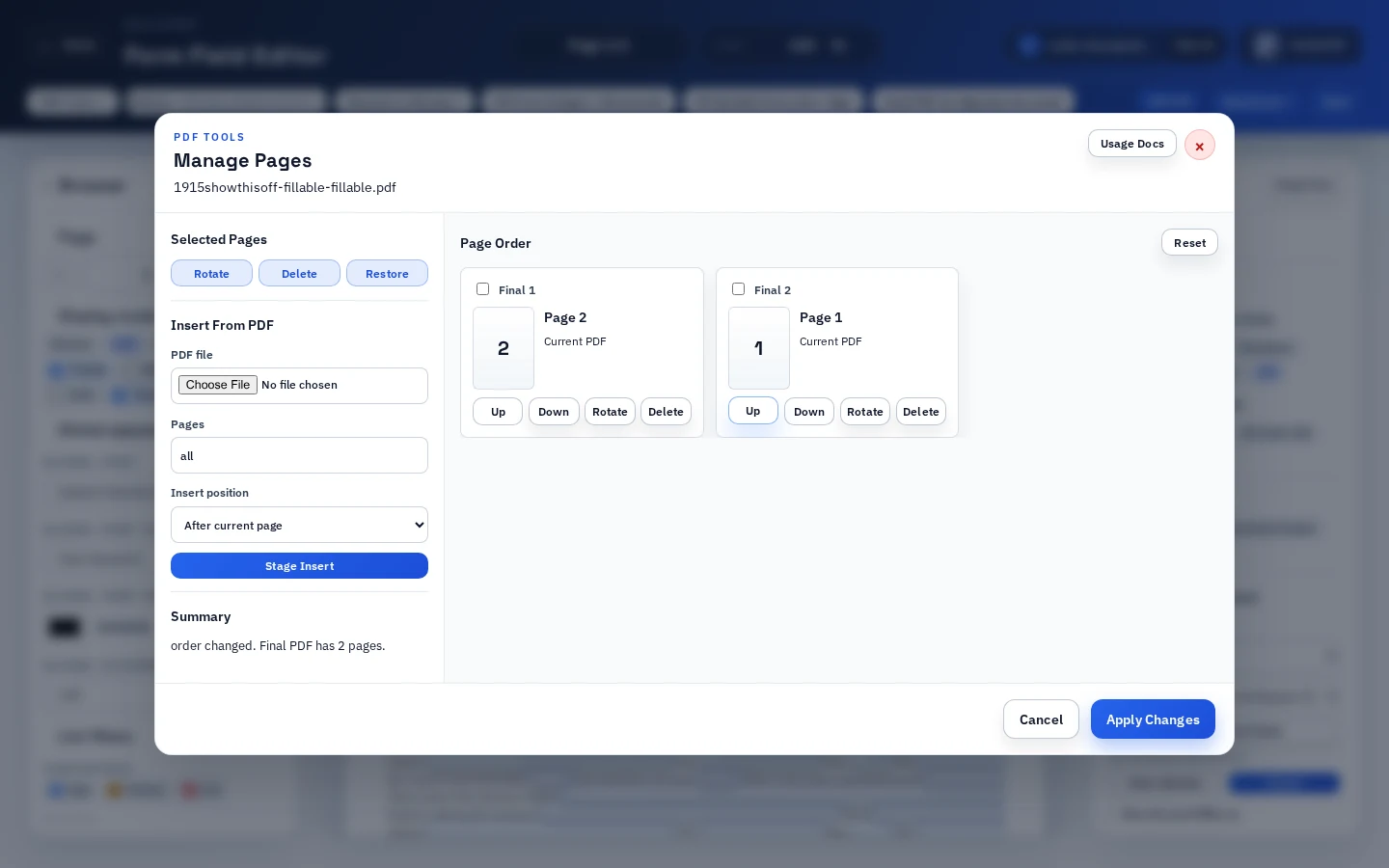
DullyPDF Manage Pages dialog used to stage page edits, including 90-degree rotation for the active source PDF.
Manage Pages stages rotation alongside reorder, delete, and insert-from-PDF operations before the active source PDF is rewritten.
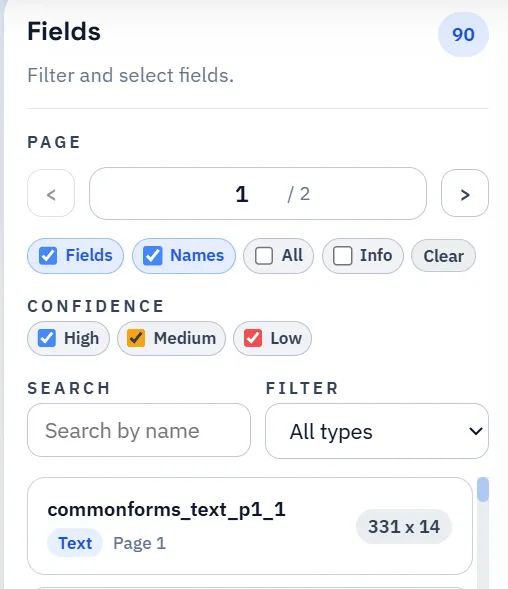
DullyPDF field list used to review field metadata after rotating PDF pages.
After rotation, review the field model because overlays move with the page while signature anchors and image helpers still need verification.

Why rotation matters for fillable PDFs, not just PDF viewers

A viewer-level rotation only changes what one person sees on screen. The PDF bytes stay the same. That is fine for casual reading, but it does not fix the underlying file for a template workflow. The next operator, respondent, or signer can still receive a sideways page.

Rotating a fillable PDF inside DullyPDF is a different operation. It updates the active source PDF so the corrected orientation becomes part of the template, the saved snapshot, and any downstream link, API output, or signed record. That is the difference between a personal viewing hack and a real template fix.

  • Best fit: scans imported sideways, landscape pages that should be portrait, or misoriented pages that need to stay corrected in the saved template.
  • Poor fit: temporary viewer rotation for one person; that does not change the PDF and does not propagate to recipients.

Use Manage Pages when the source orientation should change

The permanent rotation path is PDF Tools > Manage Pages. Each page card has controls for rotating in 90-degree steps so the operator can stage the final orientation before the active source PDF is rewritten.

That staging is important because rotation interacts with field geometry. A page-by-page plan lets the operator confirm which pages should change, inspect the resulting orientation, reset before applying, and only then commit the source-PDF update.

What happens to fields when current pages rotate

Fields on rotated current-PDF pages move with those pages. After rotation, the field overlay should appear over the visually correct positions on the rotated page rather than staying attached to the old orientation.

That behavior keeps the template usable, but it does not remove the need for review. Field width and height may now feel different against the rotated visible area, and signature boxes, image fields, or barcode helpers should be inspected so the visible layout still makes sense.

Rotation, reorder, merge, delete, and compress are different jobs

Rotation changes orientation. Reorder changes sequence. Merge inserts new pages. Delete removes pages. Compression performs lossless cleanup after the structure is stable. Mixing these in one mental step makes mistakes easier to miss.

Keep each operation deliberate. Rotate the pages that need rotation, reorder if the sequence should change, then move on to other page edits in their own pass. That makes review easier and keeps the saved template honest about what actually changed.

  • Rotate when orientation is wrong for the recurring template.
  • Reorder when the sequence should change.
  • Merge or delete when the document should gain or lose pages entirely.
  • Compress only after page structure is stable.

A safe rotation checklist before saving or publishing

After applying rotation, treat the template like any other page-edited document. The visible orientation should look correct on every screen the workflow uses, and the field model deserves the same review pass that follows other Manage Pages operations.

That review especially matters before Fill By Link, API Fill, or signing because those workflows depend on the saved template. A rotated page that still has misaligned signature anchors or oddly sized text fields can quietly produce bad output once the public link or signing request is live.

  • Confirm every rotated page looks correct on desktop and mobile previews.
  • Review field overlays, signature anchors, image helpers, and barcode helpers on the rotated pages.
  • Run one Search & Fill row, link response, or API payload through the rotated template before publishing.
  • Choose flat output for final records once the rotation is verified.

Save only after the rotated orientation is stable

A saved DullyPDF template should represent the orientation the team actually wants to reuse. If the template is still being rotated, avoid publishing dependent workflows until the final orientation has settled.

Once the rotation is stable, save the template and continue into the workflow that fits the job: Search & Fill, Fill By Link, API Fill, selected-page output, signing, or compression as a final cleanup pass.

Why teams use Rotate Fillable PDF Pages

  • Stage 90-degree rotation before rewriting the active source PDF.
  • Rotate sideways scans, landscape pages, or misoriented form pages without rebuilding the template.
  • Review field geometry and overlays after rotation so the saved template still matches the visible page.

Implementation signals for Rotate Fillable PDF Pages

  • Manage Pages supports rotation in 90-degree steps alongside delete, reorder, and insert-from-PDF operations.
  • Fields on rotated current-PDF pages move with those pages, so geometry follows the visible rotation instead of staying on the old axis.
  • The staged plan must keep at least one page before DullyPDF applies changes, and operators can reset before applying.
  • After page changes, DullyPDF refreshes the active PDF bytes and backend session so Rename/Map and field review continue against the updated document.

Need deeper technical details about rotate fillable pdf pages? Use the Rename + Mapping docs and Search & Fill docs to validate exact behavior.

Frequently asked questions about Rotate Fillable PDF Pages

Can DullyPDF rotate pages in a fillable PDF?

Yes. Use PDF Tools > Manage Pages, then rotate page cards in 90-degree steps before applying the staged source-PDF update.

Do PDF fields rotate with their pages?

Fields on rotated current-PDF pages move with those pages, so the overlay follows the visible orientation. Review the rotated geometry before saving.

Is this different from rotating in a PDF viewer?

Yes. Viewer rotation only changes what one person sees. DullyPDF rotation rewrites the active source PDF so the orientation persists in the template and any downstream link, API, or signed record.

Can I rotate one page without changing the others?

Yes. Manage Pages stages rotation per page card, so only the selected pages change before the staged plan is applied.

Should I rotate pages before Fill By Link, API Fill, or signing?

Yes. Rotate and review the source template before publishing a link, enabling API Fill, or sending the filled PDF for signature so respondents and signers see the corrected orientation.

Rotation belongs in template review

Orientation is part of the reusable template contract. Apply rotation deliberately, then verify fields and output before the template feeds public or automated workflows.

Docs for Rotate Fillable PDF Pages

Use these docs pages to verify the exact DullyPDF behavior behind rotate fillable pdf pages before you ship it as a repeat workflow.

Related routes for Rotate Fillable PDF Pages

These adjacent workflow pages cover nearby search intents teams compare while evaluating rotate fillable pdf pages.