
How to Build Highly Customizable Fillable Form Templates
A useful fillable form template is not just a detected field layer. It should let teams set a global visual default, adjust individual fields when the document needs exceptions, and carry those choices into editable, flat, Fill By Link, and API-generated PDFs.
Customization starts after automatic field detection
Most teams do not want a blank form builder. They already have a PDF with the right layout, branding, instructions, and approval language. The first job is detecting where the fields belong so the original document can become a reusable template instead of a static file.
But detection alone is not enough. A detected field layer still needs to look intentional. Names should be understandable, field sizes should match the printed layout, and generated values should use fonts, colors, and point sizes that make the completed document feel like it belongs to the original PDF.
Global font, size, and color settings keep template setup fast
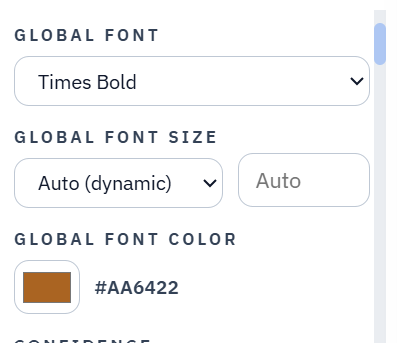
A global appearance layer is the fastest way to make a detected template feel consistent. Instead of touching every text and date field one by one, the operator can choose one default font, one default font-size behavior, and one field color for the whole workspace.
That matters when a PDF has dozens or hundreds of fields. The global rule gives teams a clean baseline, especially when the PDF should use one consistent field style across intake forms, worksheets, packets, certificates, or internal approval documents.
- Use a global font when most text/date fields should match.
- Use Auto sizing when field height should control readable text size.
- Use a global color when completed values should stand apart from the source PDF text.
Individual field overrides handle the fields that need special treatment
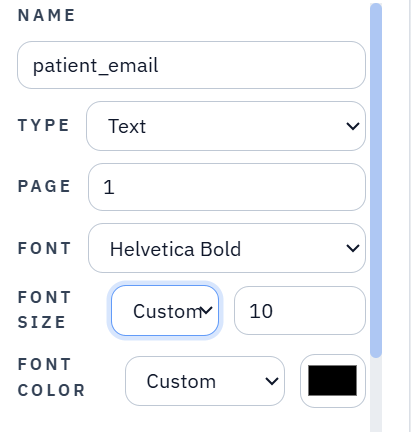
Highly customizable templates still need exceptions. A narrow ID field may need smaller text. A total or signature-related field may need a stronger color. A field inside a dense table may need a different font size from the rest of the document.
That is where individual field settings matter. DullyPDF lets a field inherit the global style or store its own font, size, and color override. The template stays fast to configure because most fields inherit, but it is still precise enough for fields that need special treatment.
Editable and flat outputs should both respect the same template appearance
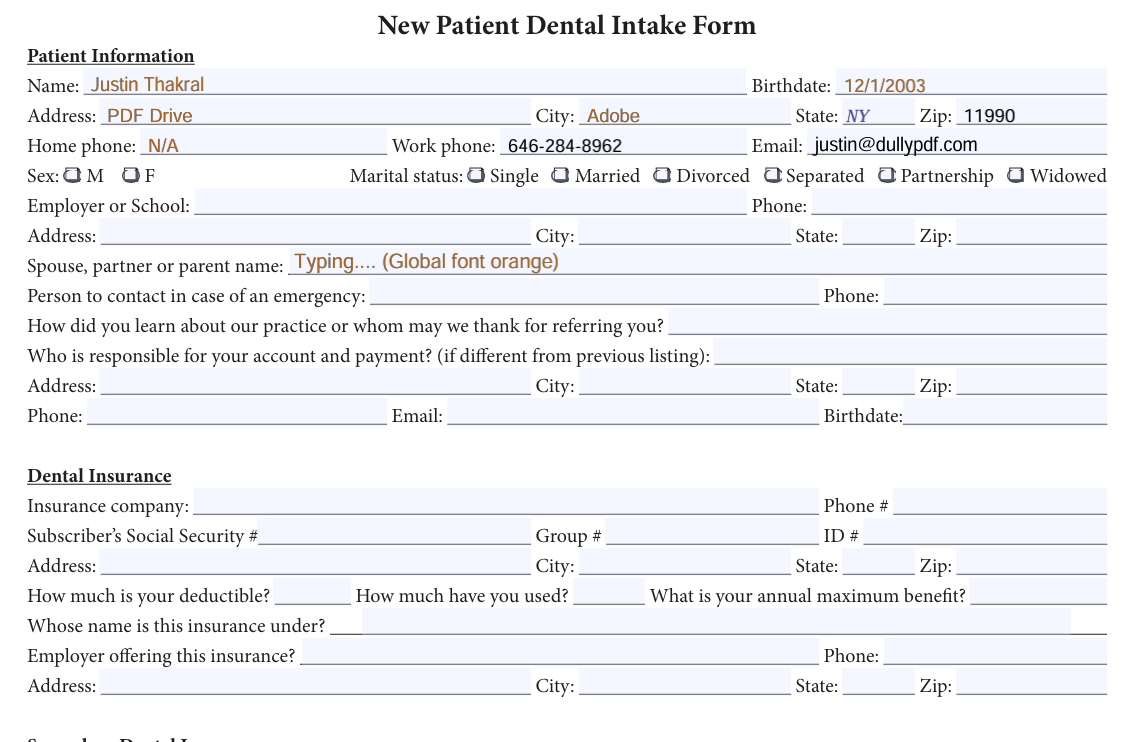
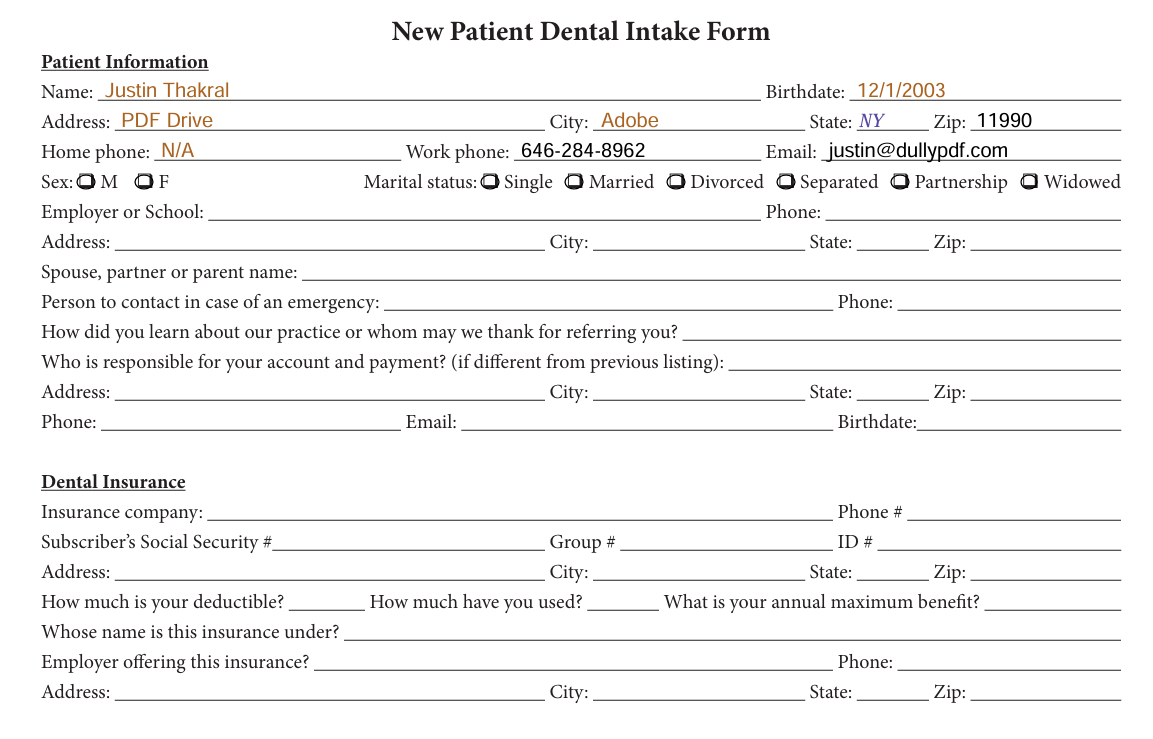
The output mode should not erase the styling work. Editable PDFs need values and appearance stored inside real AcroForm fields, while flat PDFs need the final values drawn directly into the page content. Those are different export paths, but the same template appearance intent should drive both.
This is why DullyPDF separates editable and flat output instead of drawing text under an empty live field. Editable output should stay editable. Flat output should behave like a final record. Both should use the selected font, size, and color decisions from the saved template.
The real value is saving the customized template for reuse
Appearance controls are most useful when they survive the first export. A recurring form should not need manual font and color cleanup every time a new respondent, spreadsheet row, or API request fills it. The saved template should remember both the global defaults and the individual overrides.
That saved-template behavior is what makes customization operational instead of cosmetic. The same appearance settings can carry into Search and Fill, Fill By Link, API Fill, editable downloads, and flat downloads. The team sets the visual rules once, then reuses them wherever the template goes next.
When highly customizable fillable form templates matter most
This feature matters most on documents where the finished PDF will be seen by clients, patients, applicants, signers, or reviewers. A rough internal worksheet may not need much styling, but intake packets, certificates, invoices, school forms, financial forms, and official-looking business records benefit from tighter appearance control.
The practical rule is simple: use automatic detection to get the field layer quickly, use global appearance to make the template consistent, and use individual overrides only where the original PDF requires an exception. That keeps setup efficient without giving up document quality.
- Start with detection so the existing PDF becomes editable faster.
- Set global field appearance before fine-tuning individual fields.
- Use flat output for final recipient copies and editable output when live fields need to remain available.